


Invoice statuses
Every invoice on the Invoices tab has a coloured status tag. It tells you where the invoice is on its way to being paid. What each status means Draft : saved but not yet sent to the property for...
Last updated
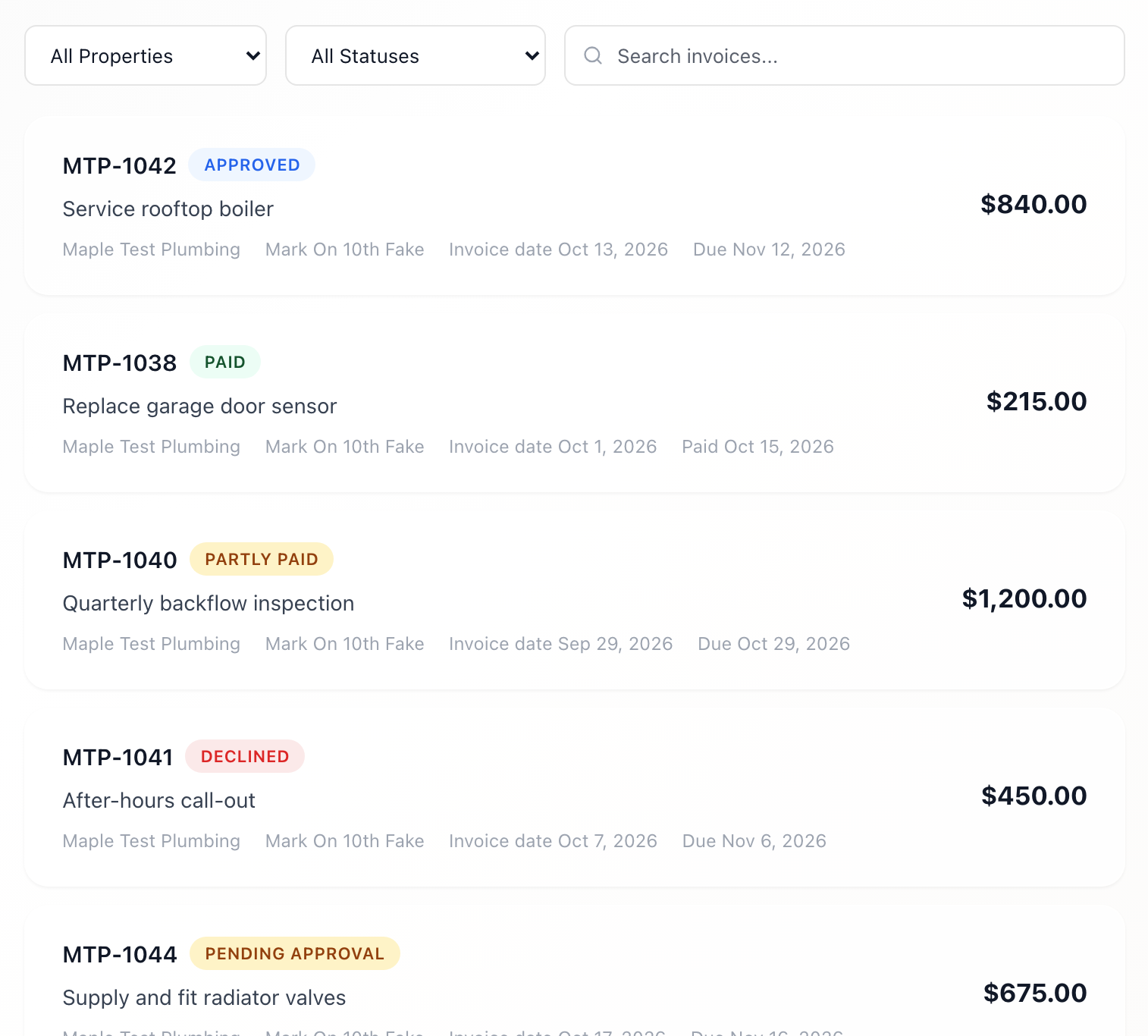
Every invoice on the Invoices tab has a coloured status tag. It tells you where the invoice is on its way to being paid.
What each status means
- Draft: saved but not yet sent to the property for approval.
- Pending Approval: the property has your invoice and has not approved it yet. You do not need to do anything.
- Submitted for review: the property received your invoice, but it does not use full accounting in URBI. The team handles payment with you directly, so speak to them.
- Approved: the property approved it. It is now waiting to be paid.
- Scheduled: a payment date has been set, and the payment has not gone out yet.
- Partly paid: part of the invoice has been paid, and the rest is still open. The invoice keeps showing its full amount. The Outstanding tile shows only what is left (see "The Outstanding total and invoice tiles").
- Paid: paid in full. The date shows next to it, for example "Paid Oct 14, 2026". This is true whether the property paid through URBI or paid by cheque or bank transfer and recorded it.
- Declined: the property did not accept the invoice. Contact them to find out why, and whether to send a corrected one (see "Fix a mistake on an invoice").
- Flagged: the property needs something from you. The card says Action required. Contact the property.
- Void: the invoice was cancelled. If it was the only invoice on its job, the job goes back to Awaiting invoice so you can send a new one.
What else is on an invoice card
Each card shows the invoice number, a description, your company, the property, the invoice date, and the amount. The line also shows Paid with a date once it is paid, or Due with a date if you gave one.
Find invoices by status
Use the All Statuses menu above the list to show only one status, such as Partly paid or Declined. See "Search and filter your invoices."
How a payment reaches you
Once the property approves an invoice, an administrator releases the payment, or it goes out on the date set for that invoice. Processing usually takes 2 to 3 business days after release. For the bank side, see "Connect your bank account."