


Open the files on your RFP or work order page
The property attaches files to a job, such as photos, drawings, or a scope of work. You attach files too: your quote, and later your invoice. Here is where each kind of file appears and how to open...
Last updated
The property attaches files to a job, such as photos, drawings, or a scope of work. You attach files too: your quote, and later your invoice. Here is where each kind of file appears and how to open it.
Files from the property
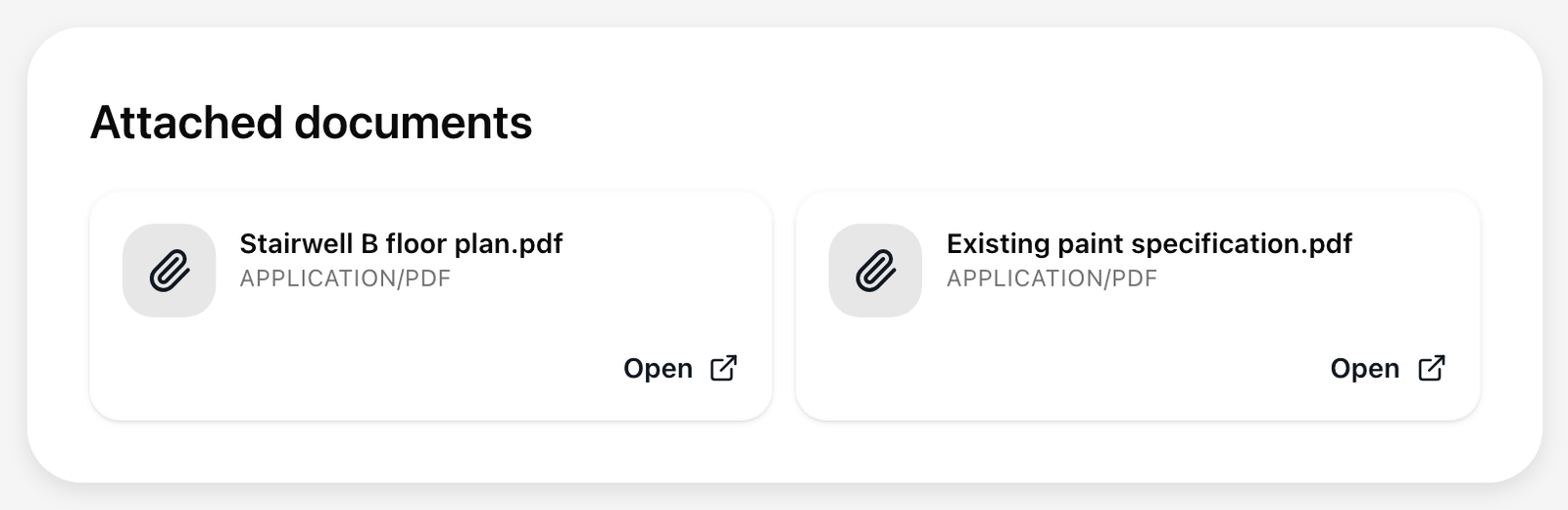
- RFP page: the Attached documents card.
- Work order page: the Service Documents card.
Each file is a small card with an icon, the file name, and its kind (for example PDF or IMAGE). Select the card, or its Open link, and the file opens in a new tab. If there are none, the card says so.
Files you sent
- RFP page: under Submitted Documents, with View to open each one and Remove to take it out of your proposal while the request is open. See "Add and remove proposal files."
- Work order page: in the Your proposal card, under Attachments. You can open them here but not remove them.
If a file does not open
Files open through a secure address that is made fresh each time you select one. That keeps private files private, and it can take a moment.
- If the new tab shows a short message such as "Request is taking longer than expected. Please try again in a moment.", close the tab and select the file again.
- If it says "Document not found", the file may have been removed. Ask the property (see "Reach the property").
- A file in your proposal that is past your Expiry Date is no longer listed. See "Add and remove proposal files."
Sending a file to someone else
Do not copy the address of the opened file to share it. That address stops working quickly. Share the page link instead (see "Share your work order link with your team"), or save the file and send it.
Your invoice file is different
An invoice file you upload on the work order page is not listed again on that page after you send it. See "Invoice file rules."