


Troubleshooting
My code never arrived Check your spam or junk folder first. If it still is not there, go back to the email step and select Continue again, or select Resend code from the verification screen. Codes...
Last updated
My code never arrived
Check your spam or junk folder first. If it still is not there, go back to the email step and select Continue again, or select Resend code from the verification screen. Codes are only valid for 10 minutes, so an older code stops working even if it eventually arrives.
Make sure you are using the email address of a contact on your company's record, spelled exactly the way the property has it. The company's general email address cannot sign in, and a contact saved without an email address cannot receive a code. Ask the property to check the contact's email and to send you a portal invite.
To protect your account, you can only request 3 codes per hour for the same email address. If you have requested several codes in a row, wait a little while before trying again. If a code could not be sent because of a problem on our side, that try is not counted against your 3.
"That code is not right" or I'm locked out
Double check you are entering the most recent code you were sent; requesting a new code cancels the old one. After 5 incorrect attempts on a single code, it locks and you will need to request a new one.
My session ended while I was working
Sessions last 2 hours. If you were signed out mid-task, sign in again the same way, with your email and a new code. Anything you had already submitted, such as a completed invoice, was saved and is not affected.
I never got a portal invite
The property has to send it. Adding you as a contact does not send an email by itself. Ask the property to open your company's record, go to Contacts, and select Send portal invite on your contact. They can send a new one every 10 minutes if needed. You can also skip the invite and sign in at any time with your registered email address.
I don't see "Apply invoice" on a job
This button only appears once your company has actually been awarded the job. If the property has only asked you to quote on it so far, or has not confirmed it is yours yet, the button will not show. Check with the property if you believe the work is already yours.
It also will not show again for a job once you have already submitted an invoice against it. You can confirm your submission went through on the Invoices tab. A job that is already Awaiting sign-off or approved still shows the button until you have invoiced it.
My file wouldn't upload
Make sure the file is a PDF, JPEG, PNG, or WebP, and that it is under 10 MB. An invoice file is required, so the form will not submit without one. If the upload fails partway through, your form entries are kept, and you can try attaching the file again without losing what you already typed.
It said "the file did not attach" after I submitted
Your invoice is recorded, but the file did not reach the job. Do not submit the invoice again. Email the file to the property team so they have it on record.
I submitted an invoice and the page says "Submitting your invoice"
Sending from the work order page can take up to 30 seconds. Keep the page open and wait for Invoice submitted successfully. Submitting again could create a duplicate.
My job did not move to Paid or Awaiting invoice
Jobs move by themselves as the property works. A job shows Awaiting invoice when the work is signed off and you have not sent an invoice, and Paid once every invoice on it is paid. If a job still shows Completed, an invoice on it is waiting to be paid. If an invoice was voided and no other invoice remains, the job returns to Awaiting invoice.
The property has not signed off on my finished job
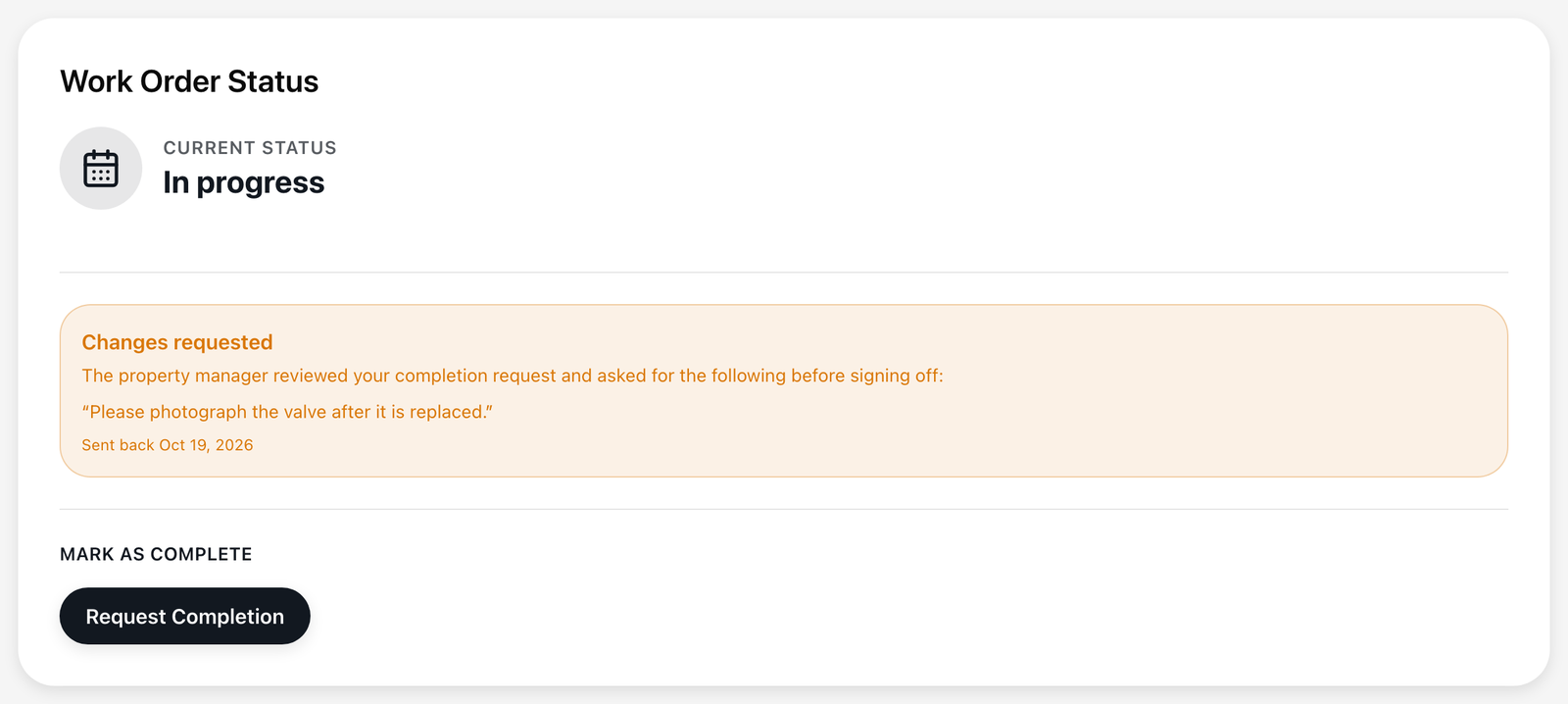
After you select Request Completion, the job shows Awaiting sign-off until the property approves it or sends it back with a note. The property is emailed when you request completion, but if it has been a while, contact them directly. If the page shows Changes requested, read the note, make the changes, and select Request Completion again.
My notes, schedule, or subtask did not save
These save as soon as you make the change. If one fails, you will see an error message and the page puts back what was saved before. Check your connection and try again.
My job link says "Work order not found" or "Link not found"
A job link stops working when the property archives the job, or archives your company in its vendor list. The work order page then shows Work order not found, and a request for proposal link shows Link not found with the note that the link is no longer available. Nothing you can do from the link will be saved while it is closed: proposals, files, schedule, subtasks, notes, completion requests, and invoices are all turned away.
If you think the job should still be open, contact the property directly. A link that was mistyped or cut short shows the same message, so try opening it again from the original email first.
My company can no longer sign in
If your company's access has been removed, or your email is no longer listed as a contact for your company, sign-in codes will stop being sent to that address. This is done by the property, not automatically. Contact the property directly if you believe this was a mistake.
I did not get an invitation to add my bank details
That email goes to one of your company's contacts, preferring the accounts receivable contact, and never to the company's general email address. If your company has no contact with an email address, the property cannot send it. Ask them to add you as a contact, or add your bank details yourself from the Bank Account tab.
I can't submit my proposal
Submit proposal stays greyed out until you have entered a Proposal Price and added at least one file. It also stays greyed out while a file upload has failed. Remove the failed file, add it again, and try once more. See "Respond to a request for proposal (RFP)" and "Add and remove proposal files."
I can't change my proposal
You can change it until the property picks a company, or until the expiry date you set has passed. After that, the form is locked and shows a note such as "This proposal is rejected and can no longer be edited." Contact the property if you think this is a mistake. See "What happens after you submit a proposal."
I can't change my schedule
Schedule service is switched off after you select Request Completion, with the note "Scheduling is disabled after completion request is submitted." It opens again if the property sends the job back with changes. Once the property has approved the job, the dates cannot be changed. See "Schedule the job."
My notes or tick boxes disappeared
If a save fails, the page puts back what was saved before, and your note comes back into the box. Check your connection and try again. See "Add technician notes" and "Tick off job tasks."
My session is about to end
The timer in the top corner counts down from 2 hours. In the last 10 minutes it turns into a warning. Finish what you are sending first, then sign in again for a new session. See "Stay signed in and sign out."
My Bank Account tab says "Give us your bank details" or "No bank linked"
No bank details are on file for that company yet. Choose Connect bank account, or Enter details by hand (with more than one company, Connect bank or Enter by hand next to the company). See "Connect your bank account" and "Enter your bank details by hand."
My tax link says "This link has already been used"
Your details were received, or the property sent them back and issued a new link. Look for a newer email from the property. See "When your tax information is sent back."
I do not know which email to act on
See "Which email did you get?" for what each email from the property means.
Something else looks wrong
If a screen shows a message you do not understand, or something clearly is not working as described in these articles, contact the property you are working with, or reach out to URBI support at hello@myurbi.co.