


Open your work order
The work order is your page for one job. It is where you schedule the visit, tick off steps, add notes, ask the property to sign off, and send your invoice. Ways to open it From an email. Emails...
Last updated
The work order is your page for one job. It is where you schedule the visit, tick off steps, add notes, ask the property to sign off, and send your invoice.
Ways to open it
- From an email. Emails about your job have a button: Open work order (when the property assigns you the job directly), View Work Order (when your proposal was picked, or in a reminder), or Open work order again in the "Work approved" and "Changes requested" emails. Select the button. You do not need to sign in.
- From the Vendor Portal. Sign in, stay on the Service Tickets tab, find the job, and select Open work order. It opens in a new tab.
- From your old RFP link. Once the property picks your company, your RFP link takes you to the work order by itself.
What is on the page
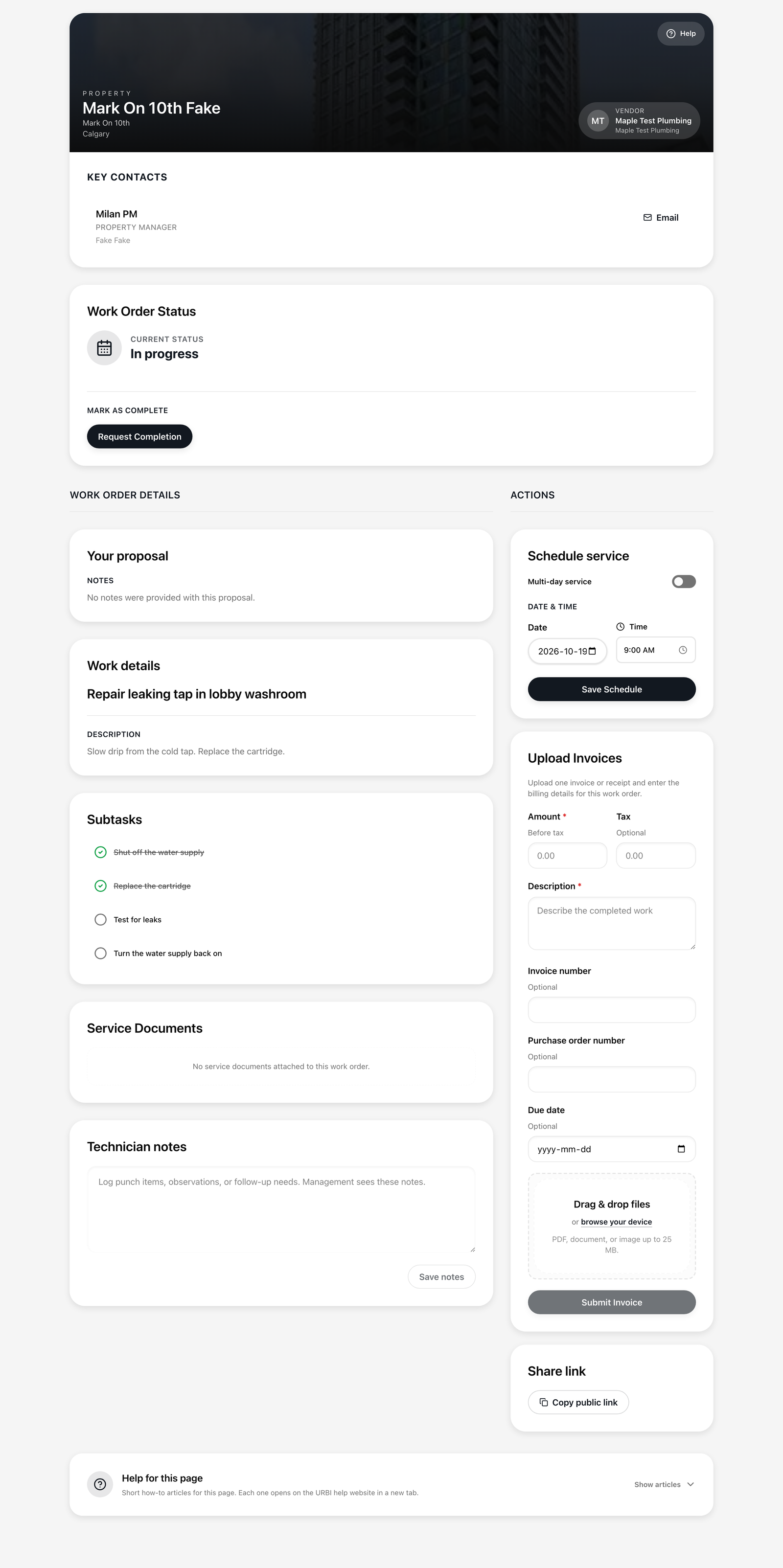
- Property header and Key contacts. Who to call or email at the property.
- Work Order Status. The current stage of the job (Open, In progress, Awaiting sign-off, or Completed), plus your scheduled date once you set one. The Request Completion button is here.
- Your proposal. The notes and files you sent. If this job was assigned to you directly, there may be no proposal.
- Work details. The job title and description.
- Subtasks. Steps you can tick off. See "Tick off job tasks."
- Service Documents. Files the property attached to the job.
- Technician notes. Where you write notes for the property. See "Add technician notes."
- Actions (right side on a computer, lower on a phone). Schedule service, Upload Invoices, and Share link.
If the page says "Work order is locked"
You opened the link before the property picked a company. It says "You will see the work order details once the property manager accepts your proposal." Select Back to RFP to see or change your proposal.
Share link
The Copy public link button copies the page address, with a message "Link copied." Anyone who has that address can open your work order, so only send it to people on your own team. See "Stay safe."
If the page will not open
- Unable to load work order: select Retry.
- Work order not found: the link may be cut short, or the job was closed. See "When a job link is no longer available."