


Your jobs
Once you sign in, you land on the Service Tickets tab. This is where every job your company has been assigned, or asked to quote on, shows up. (Depending on the property, this tab may be labeled a...
Last updated
Once you sign in, you land on the Service Tickets tab. This is where every job your company has been assigned, or asked to quote on, shows up. (Depending on the property, this tab may be labeled a little differently, such as "Maintenance Requests".)
1. Find a job
Use the search box to look up a job by its title, description, property name, unit, or other details of the job. Below the search box, filter chips let you narrow the list to a particular stage: All, Open, In progress, Awaiting invoice, Awaiting sign-off, Completed, Paid, Closed. Each chip shows how many jobs are in that stage.
What each stage means:
- Open: the job is assigned to you and work has not started yet.
- In progress: work has started. A job also returns to this stage if the property sends your completion request back with changes.
- Awaiting sign-off: you pressed Request Completion and the property has not answered yet.
- Awaiting invoice: the property has signed off on the work and you have not sent an invoice for it yet (or the only invoice on it was voided). Send your invoice to move it forward.
- Completed: the work is signed off and you have invoiced it, but the invoice is not fully paid yet.
- Paid: every invoice on the job has been paid.
- Closed: the job has been closed by the property.
The stage also shows as a pill on each job card, and the chip counts add up the same way.
If you are a contact for more than one vendor company, a switcher above the list lets you view all your jobs together or narrow to one company at a time. The chip counts follow the company you pick.
A job card as it appears in your list
Replace hallway light fixture
Maple Court Residences · Bldg A, 3rd floor · Service date: Sep 2, 2026 · ST-4821
Awaiting invoice
Apply invoice
2. Open a job for details
Select View details on a card to expand it in place. This shows the job's description, its location, the service date, and, once one exists, the invoice reference tied to it. Select Hide details to collapse it again.
If the property emailed you a direct work order link for a job, an Open work order button also appears on the card. That opens the full job page, described next.
3. Work on the job page
The work order page has these parts. Each saves as soon as you act, and if something cannot be saved you see a short error message and your last saved version is put back, so you can try again.
- Schedule service: pick the date and time you plan to do the work, then select Save Schedule. Turn on Multi-day service for work that spans several days. The date and time use your own local day and time zone, and the form starts on today's date where you are. A date in the past is allowed. Scheduling is switched off once you have asked for completion. The property sees your schedule on the job.
- Subtasks: if the property broke the job into steps, tick each one as you finish it. The property sees the ticks. If a tick does not save, you see "Subtask update did not save" and the box goes back to how it was.
- Technician notes: type observations, punch items, or follow-up needs, then select Save notes. The property team sees these notes.
- Request Completion: when the work is done, select Request Completion under Mark as Complete. If the first attempt shows an error, nothing was recorded, so just select it again.
4. Sign-off: the property approves or sends it back
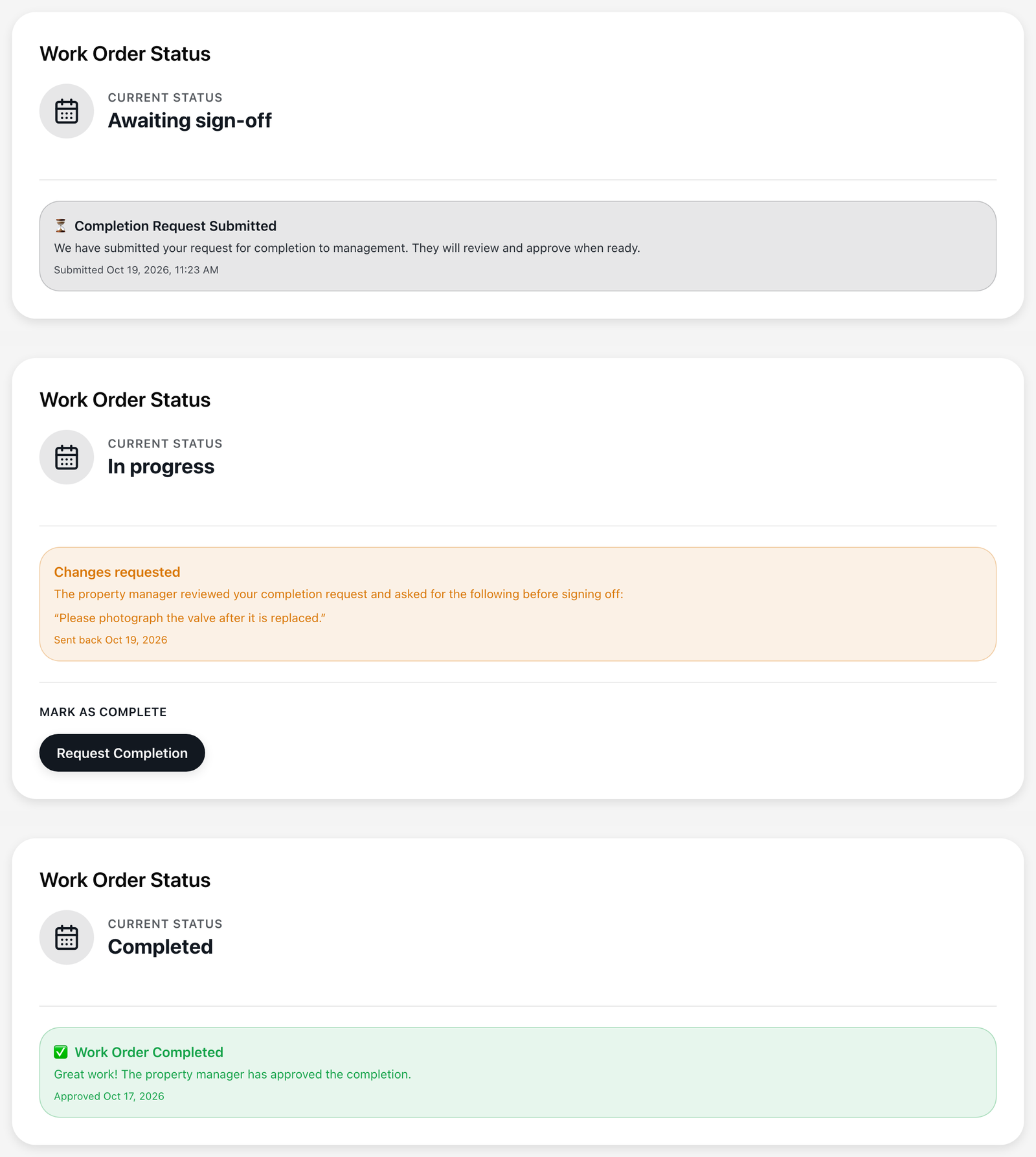
After you request completion, the page shows Completion Request Submitted with the time you sent it, and the job moves to Awaiting sign-off. The property reviews the work and does one of two things:
- Approves it. The page shows Work Order Completed with the date it was approved, and you get an email titled "Work approved" with a button to open the work order. The job is now ready for your invoice (see Awaiting invoice above).
- Sends it back with a note. The page shows a Changes requested block with the property's note and the date it was sent back, and you get an email titled "Changes requested" with the same note. The job returns to In progress. Do what the note asks, then select Request Completion again.
5. Applying an invoice
A job only shows Apply invoice once your company has actually been awarded the work, not while it is still just a request to quote. You can apply an invoice at any point after the work is awarded, including while the job is Awaiting sign-off and after it has been approved. Once an invoice has been submitted for a job, the button no longer appears on it. If you do not see the button on a job you expect to invoice, see "Troubleshooting."
For the full walkthrough of submitting an invoice against a job, see "Submitting an invoice."