


Tick off job tasks
Some jobs come with a checklist. The property breaks the work into steps so everyone can see how far along it is. You tick each step as you finish it. Where to find them On your work order (see "Open...
Last updated
Some jobs come with a checklist. The property breaks the work into steps so everyone can see how far along it is. You tick each step as you finish it.
Where to find them
On your work order (see "Open your work order"), look for the Subtasks card under the job description. If the property did not add any steps, it says "No subtasks provided." and there is nothing for you to do here.
Tick a step
Select the step. The box is ticked at once. Select it again to untick it.
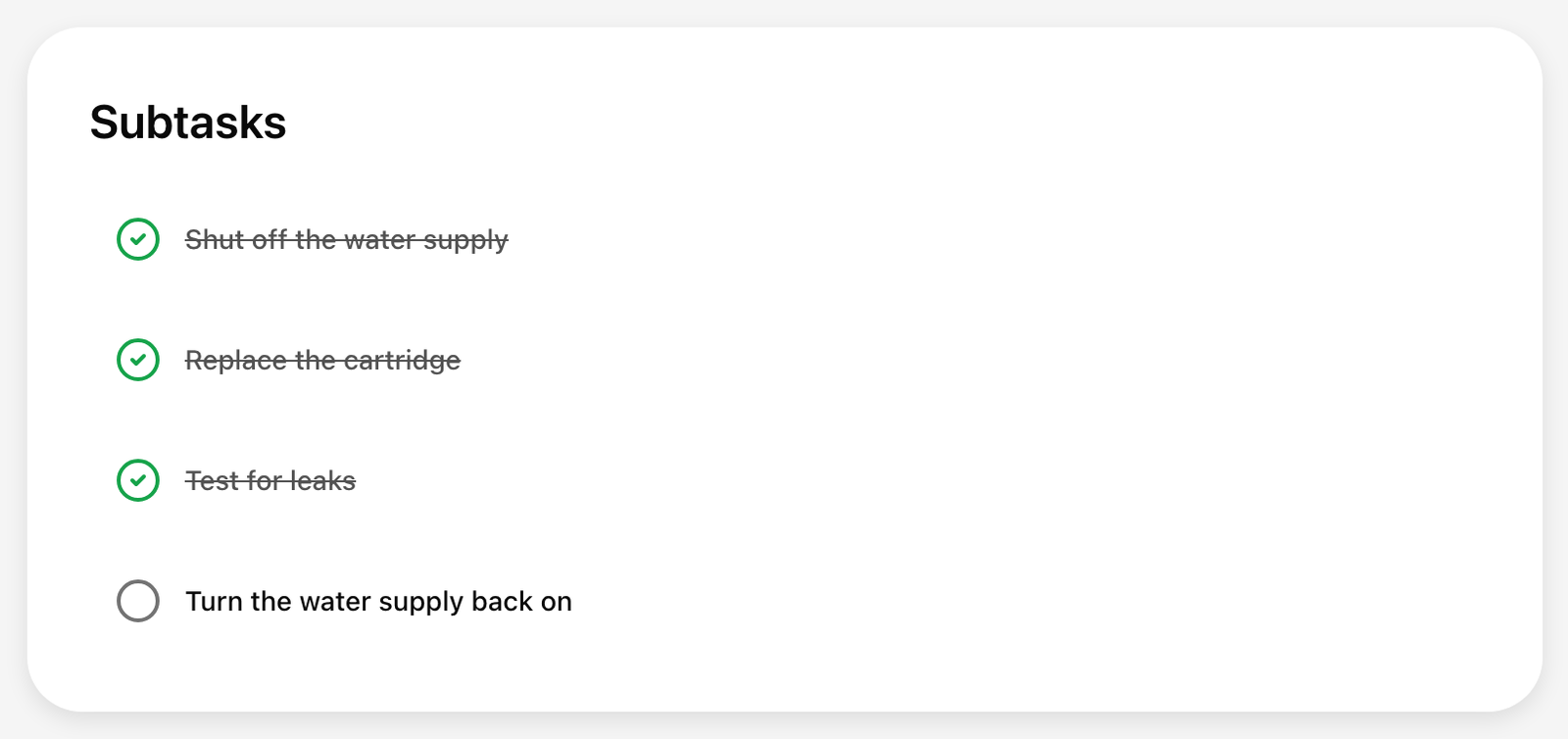
The property can see which steps you have ticked on its side of the job.
If a tick did not save
If your connection drops, the box goes back to how it was and you see "Subtask update did not save: Your checklist update did not save. Please try again." Tick the step again.
Ticking steps does not finish the job
Ticking every step does not tell the property that you are done. When the work is complete, select Request Completion. See "Request completion."