


Respond to a request for proposal (RFP)
Sometimes a property wants quotes from a few companies before it picks one. When that happens you get an email titled RFP invitation followed by the job name and the property name. The email has an...
Last updated
Sometimes a property wants quotes from a few companies before it picks one. When that happens you get an email titled RFP invitation followed by the job name and the property name. The email has an Open RFP button. You do not need to sign in to the Vendor Portal to answer it: the button opens your own private page for this job.
1. Read the job
The left side of the page shows the job: its title, a description, any subtasks, and attached documents from the property. Read these before you quote. The property's contacts are shown at the top of the page if you have a question (see "Reach the property").
2. Fill in your response
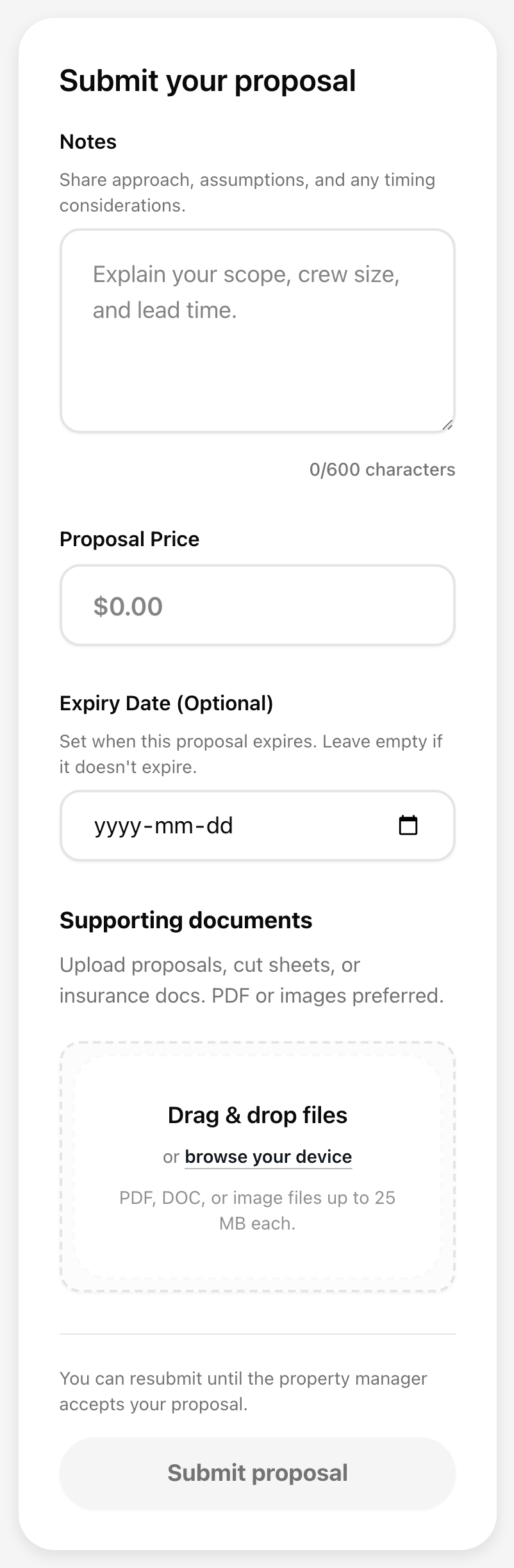
Your response goes in the Submit your proposal card on the right.
- Notes: describe your scope, how many people will work on it, and lead time. You can write up to 600 characters, and a counter shows how many you have used. Notes are optional.
- Proposal Price: the price you are quoting. Type the amount, for example 1250, and it tidies itself into a price when you move to the next box. A price is required.
- Expiry Date (Optional): the last day your quote is good for. Leave it empty if your quote does not expire. If you set one, you cannot change or resend the proposal after that date, so pick a date you are sure about. The longest an expiry date can be is 90 days from the day you submit. Select Clear to remove a date you picked.
- Supporting documents: at least one file is required, such as your quote, a cut sheet, or proof of insurance. See "Add and remove proposal files."
3. Submit
Select Submit proposal. The button stays greyed out until you have entered a price and added at least one file, and it also stays greyed out while any file upload has failed.
When it works, the card changes to Proposal submitted and a message at the bottom of the screen says "We will notify you once it is reviewed." If your files are still uploading, you see "Finalizing uploads" with a progress bar. Keep the tab open until it finishes.
Changing your proposal later
You can send a new version any time before the property accepts one. Make your changes and select Resubmit proposal. A blue note above the button shows the date of your last submission and how many documents were attached.
If your own Expiry Date has passed, the card shows a grey note and closes the form. You can still open attached files, but you cannot send, change, remove, or add anything. Contact the property manager if you still want to quote the job.
Once the property has picked a company, the form is locked. See "What happens after you submit a proposal."
If something goes wrong
- "Submission failed": check your connection and try again. Your notes and price are still in the boxes.
- "Link not found": the link has been closed. See "When a job link is no longer available."