


How to download, rename and remove files on a task
Every task has a Documents section where you keep the files that go with the work. Each file has a menu with three actions: Download, Rename and Remove from task. This article is for staff, board...
Last updated
Every task has a Documents section where you keep the files that go with the work. Each file has a menu with three actions: Download, Rename and Remove from task.
This article is for staff, board members and property managers.
Where it is
- Go to Operations → Tasks and open a task.
- Scroll to the Documents section of the task.
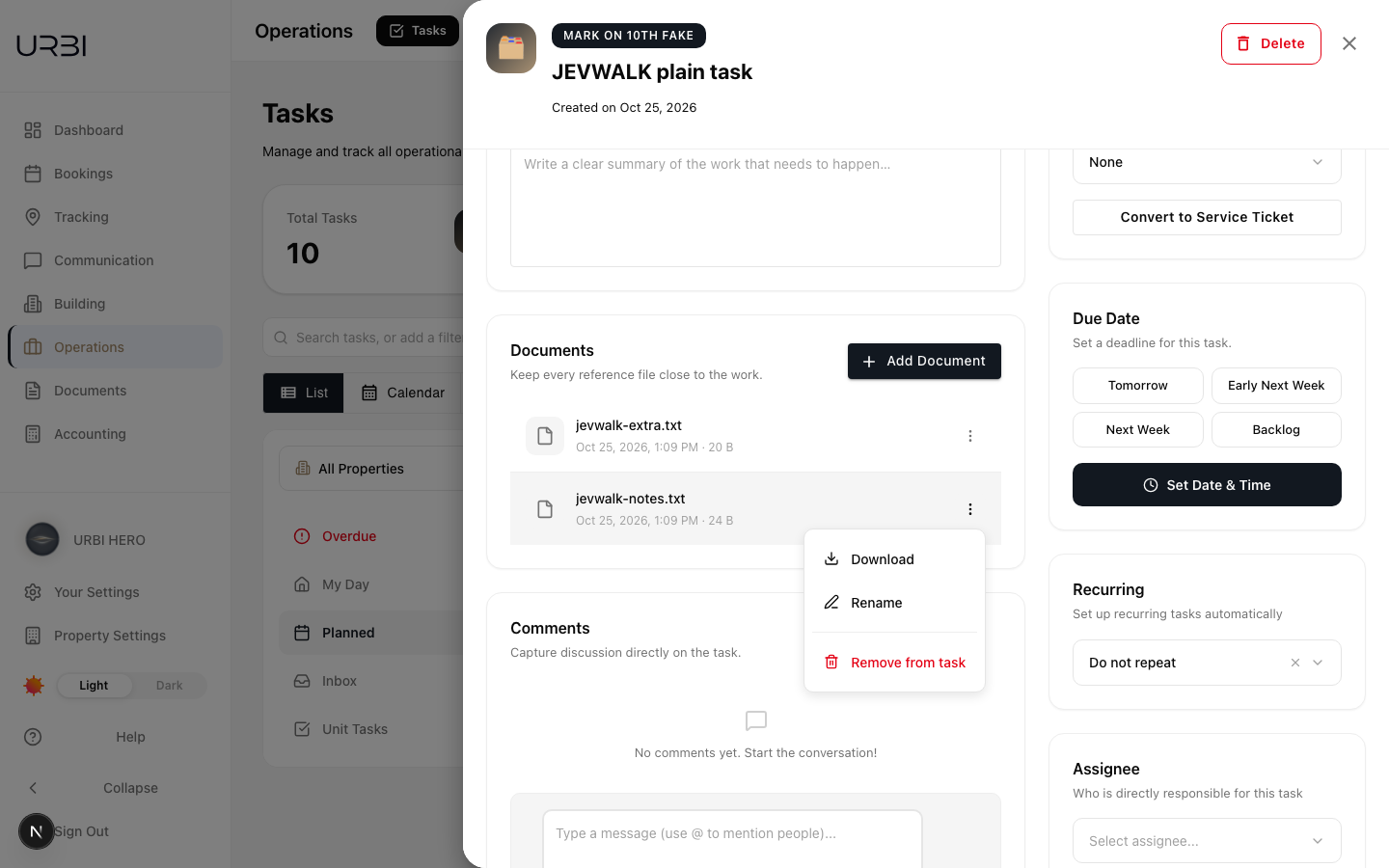
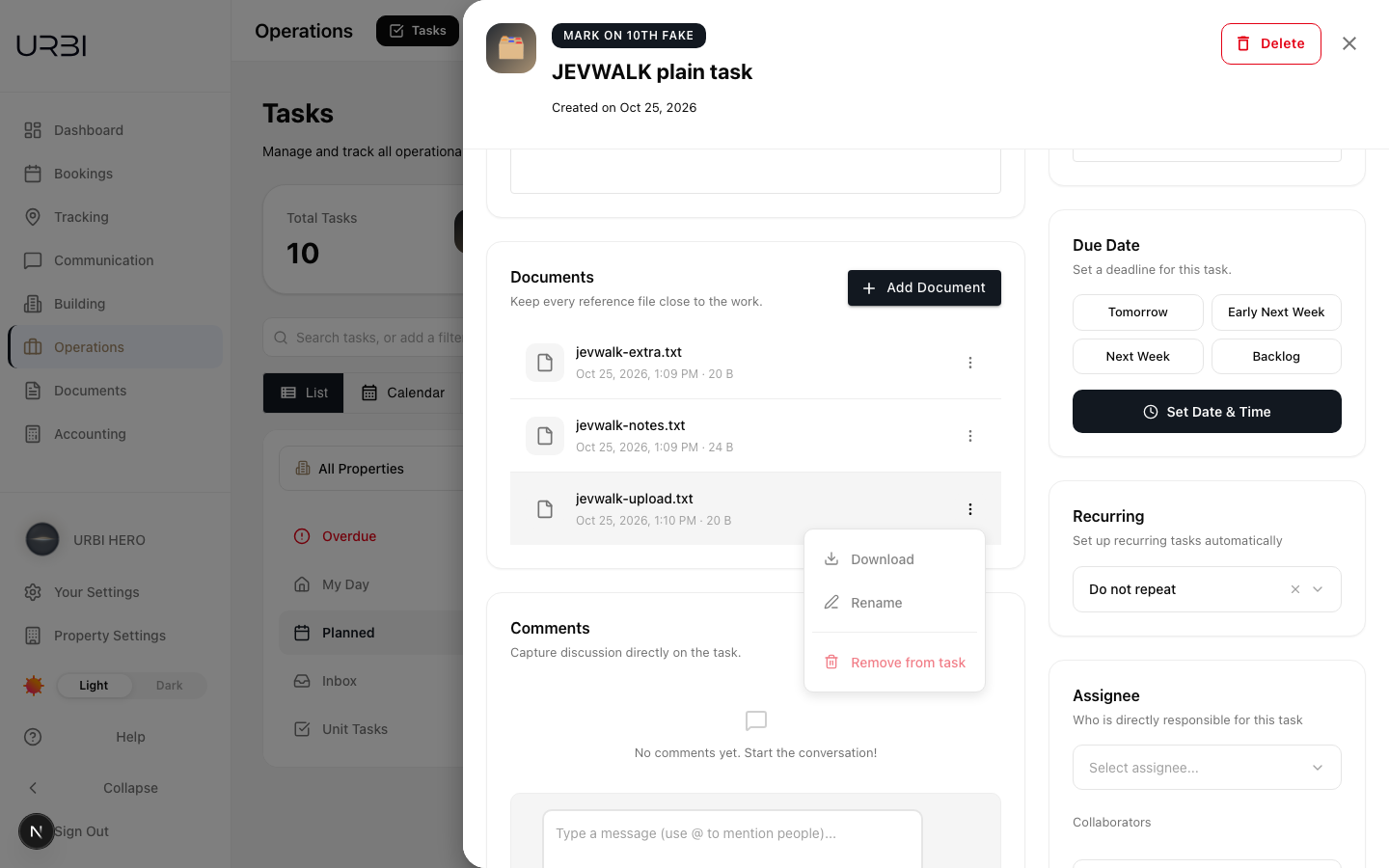
- Each file shows its name, the date it was added and its size. Select the More actions button (the three dots) on the right of a file to open its menu.
The file menu, open on a task's Documents section.
Download a file
- Open the file's menu.
- Select Download.
The file is saved to your computer under the name shown on the card. If you renamed the file, it downloads under the new name.
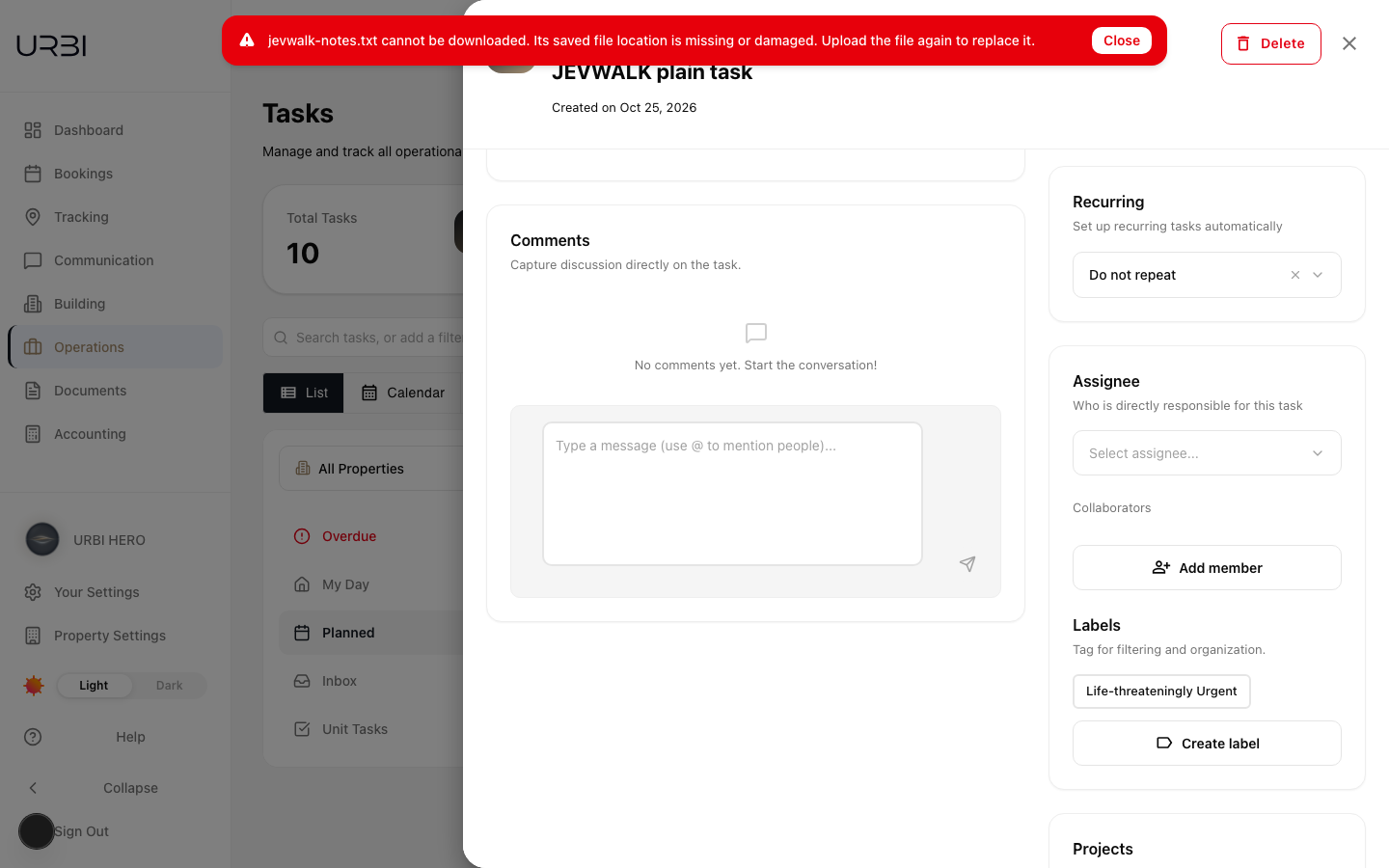
If the file cannot be downloaded, a red bar at the top of the page says so, for example "notes.txt cannot be downloaded. Its saved file location is missing or damaged. Upload the file again to replace it." The file stays on the task. If the problem was a brief connection drop, try again before uploading a new copy.
A download that could not be completed.
Rename a file
- Open the file's menu.
- Select Rename.
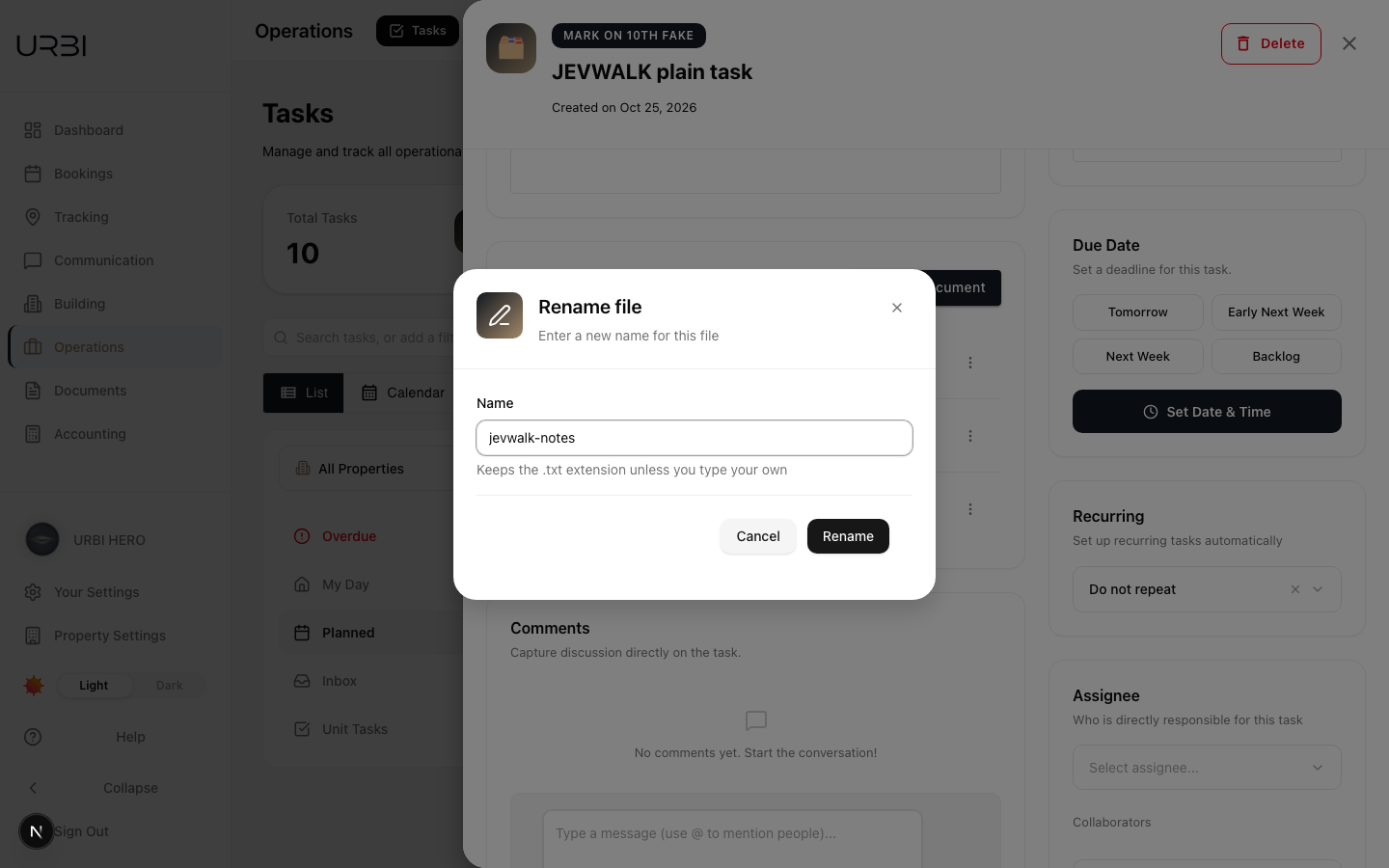
- Type the new name in the Name field. The file keeps its extension (for example .pdf) unless you type your own.
- Select Rename.
The card shows the new name straight away, and the name stays changed when you open the task again. The file has the new name everywhere it is used, not only on this task.
If you are not allowed to rename the file, the window stays open and says "You do not have permission to rename this file." Nothing is changed.
The Rename file window.
Remove a file from a task
- Open the file's menu.
- Select Remove from task.
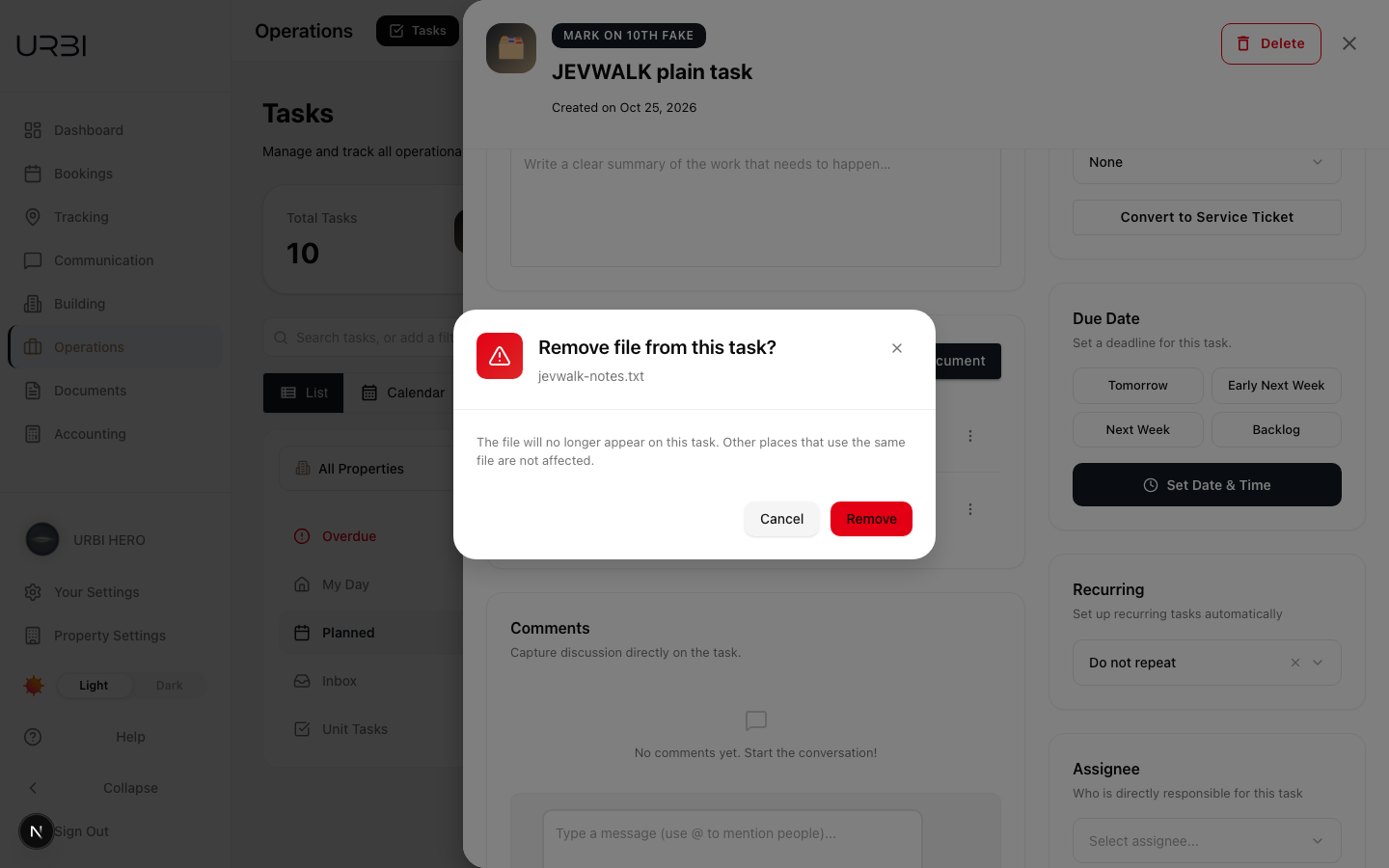
- Read the window, then select Remove. Select Cancel to keep the file.
The file leaves this task's list. Removing a file from a task does not delete the file itself: other places that use the same file, such as the property's Documents page or another task, are not affected.
The Remove window on a task that does not repeat.
If the file could not be removed, a red bar says "
If someone else already removed the file, a blue bar says "
Removing a file from a repeating task
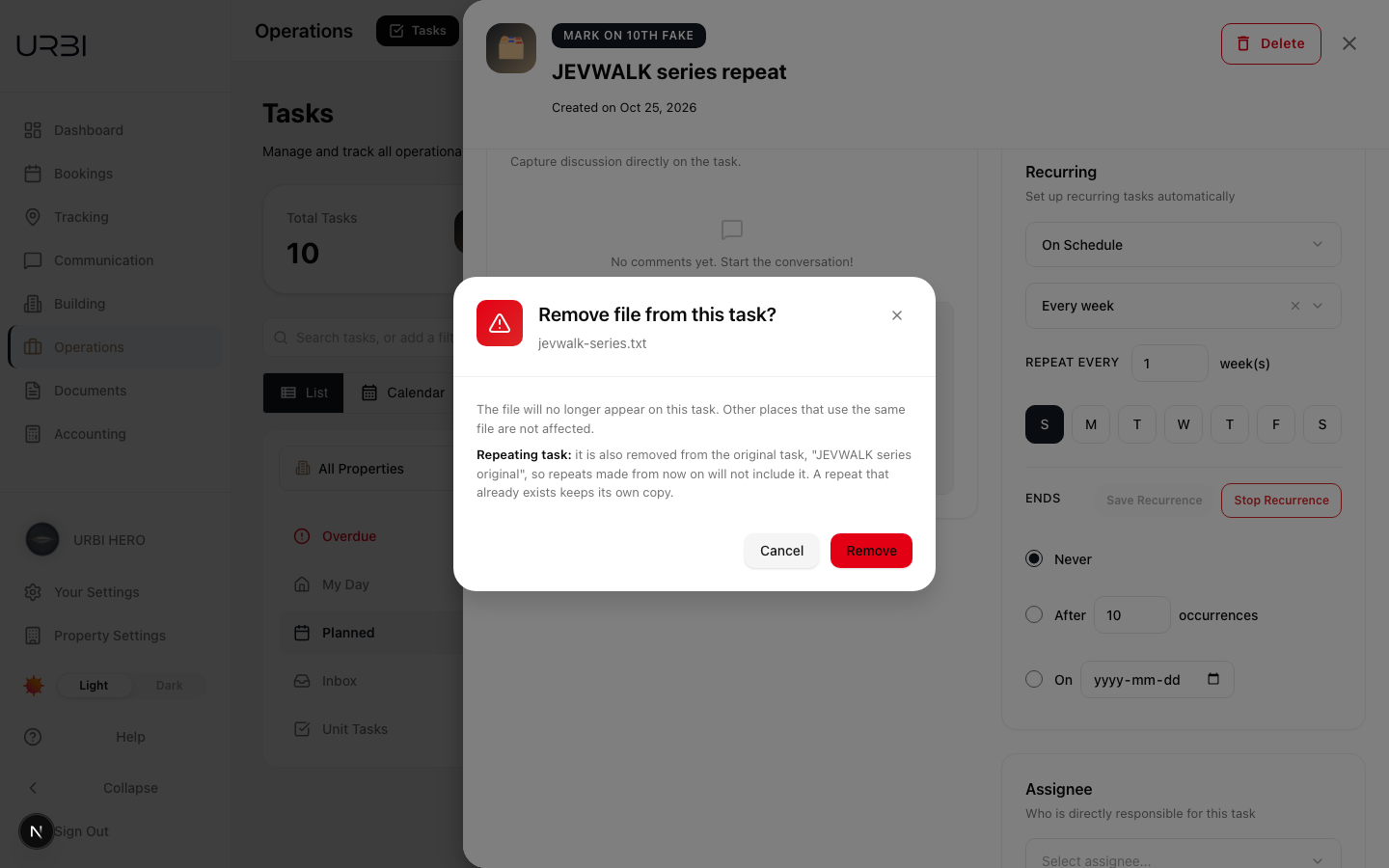
A repeating task is made from its original task (the first task of the series). When you remove a file from any task in the series, the window adds a Repeating task line that tells you what happens:
- Usually, the file is also removed from the original task, which the window names. New repeats made from now on will not include the file. A repeat that already exists keeps its own copy, so remove it there too if you need to.
- If you cannot see the original task of the series, the file leaves this task only, and the window says that future repeats will still include it. Ask someone who can see the original task to remove it there.
The Remove window on a repeating task, naming the original task.
While a file is uploading
When you add a file, its menu items are greyed out until the upload finishes. Wait a moment, then open the menu again.
On a repeating task, a new file is also copied to the original task so future repeats
include it. If that copy cannot be made, an amber bar says "
The menu greyed out while a file is uploading.
When Download and Rename are greyed out
Sometimes a file is linked to a task but its details cannot be read, for example when it was filed somewhere you do not have access to. In that case Download and Rename are greyed out and the card cannot be opened, but Remove from task still works, so you can take the file off the task.
Good to know
- Who can remove a file: anyone who can open the task, unless an administrator has turned off task access for them in the property's permission settings.
- A file you remove from the task drawer may still appear in a service ticket's own Documents tab if it was filed there. That tab keeps its own filing.