


How to sort and arrange folders and files
Terminology: This universal guide uses neutral descriptions. Follow the property-specific people and location labels shown in your workspace. You choose the order your folders and files are listed in...
Last updated
Terminology: This universal guide uses neutral descriptions. Follow the property-specific people and location labels shown in your workspace.
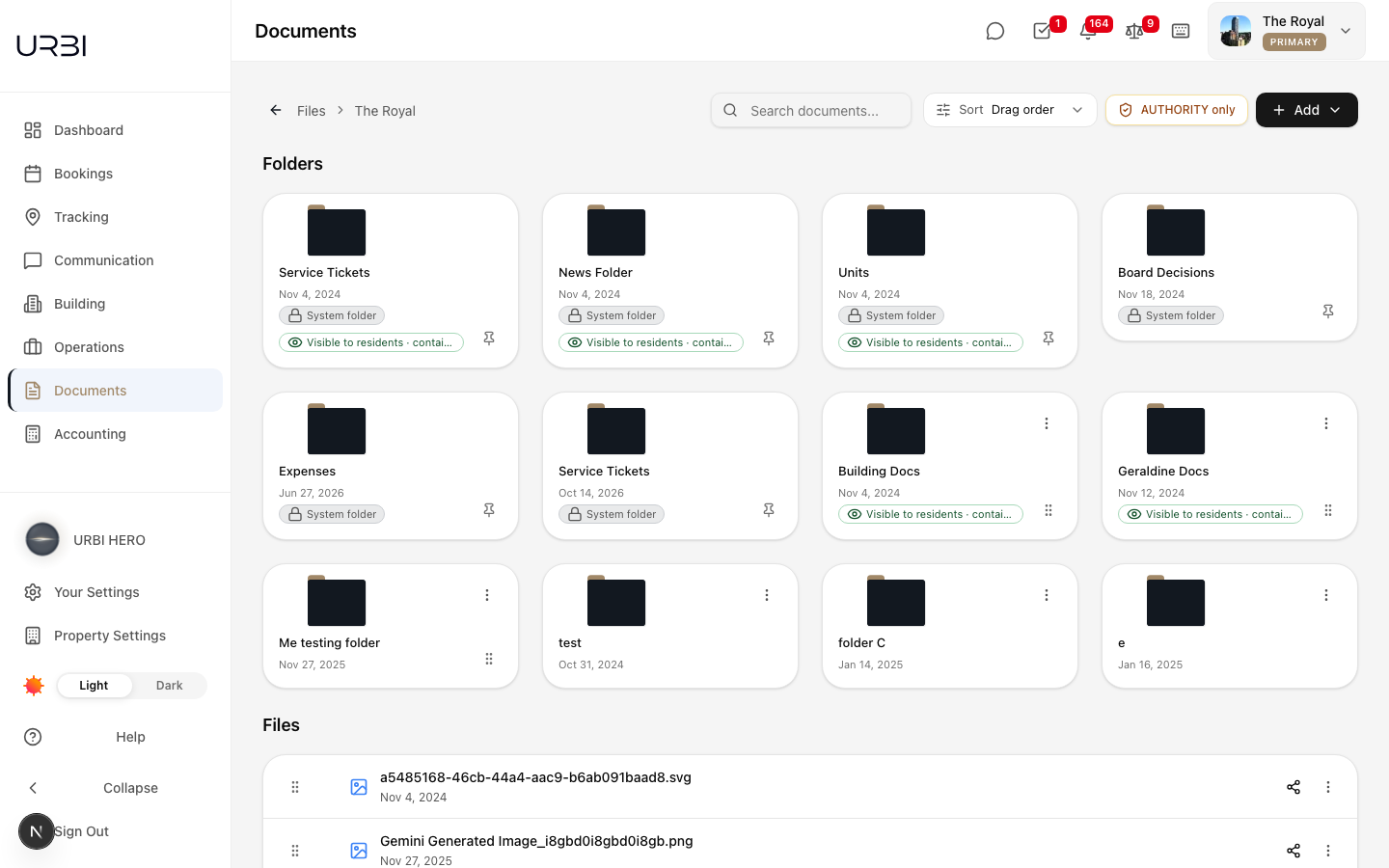
You choose the order your folders and files are listed in on the Documents page and on an assigned location's Documents tab. Pick Newest first, Oldest first, A to Z or Z to A, or switch to Drag order and arrange the folders and files by hand.
This article is for staff, site administration and governance members. Sorting works on a computer; the phone screens keep their usual order.
1. Pick a sort
Open Documents in the sidebar. Next to the search box, select Sort and pick one of:
- Newest first (the starting choice for everyone)
- Oldest first
- A to Z
- Z to A
- Drag order (the order your team arranged by hand, see step 3)
Folders are always listed before files, and both follow the order you picked, inside every folder you open.
2. Your choice is remembered for you
The sort you pick is yours alone. URBI remembers it the next time you sign in, on any computer, and uses the same choice on every assigned location's Documents tab. A colleague who picks a different sort keeps theirs; your choice does not change what they see.
Long folders keep loading as you scroll, in the order you picked, with nothing skipped and nothing repeated.
3. Arrange folders and files by hand (Drag order)
Pick Drag order. Every folder card and file row you can move shows a small dotted handle.
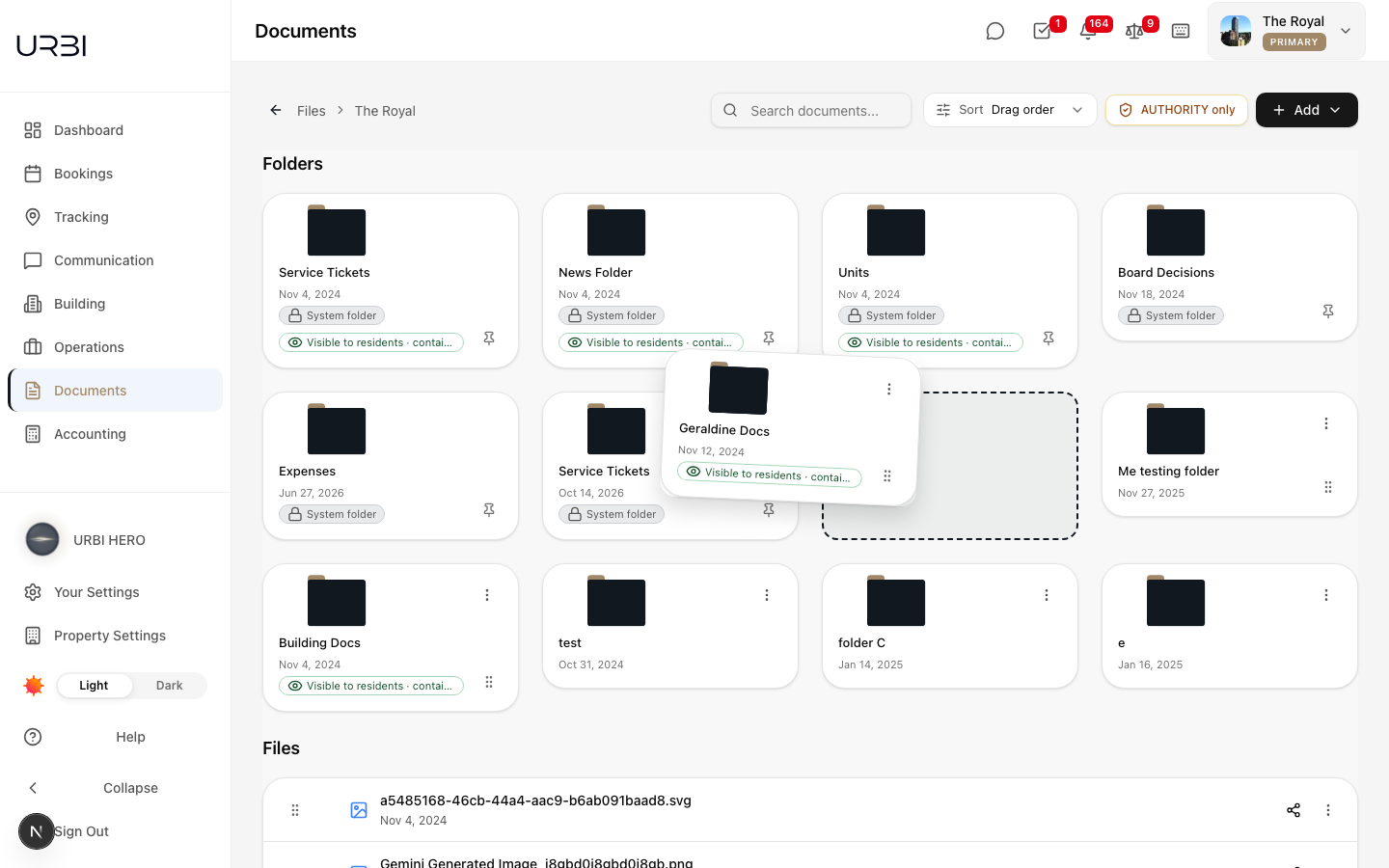
- Press and hold the handle, then drag the folder or file to its new place. The others move aside to show where it will land.
- Release it. The new order shows straight away and is saved for the whole team at this property.
Good to know about Drag order:
- The order is shared. There is one arranged order per folder at the property. When you rearrange a folder, every colleague who uses Drag order sees your arrangement.
- Folders move among folders, files among files. Folders always stay above files.
- System folders stay at the top. Folders URBI creates for you (such as Service Tickets, Units or Board Decisions) show a pin mark instead of a handle. Hover the pin to see "System folders stay at the top". Nothing can be placed above them.
- New items go at the end. A folder or file added later is listed after the ones your team arranged, until someone moves it.
- Dragging by the handle only reorders. Dropping onto another folder card with the handle does not put the item inside that folder. To move an item into a folder, drag the card or row itself (not the handle), or use Move.
- You can use the keyboard. Press Tab until the handle is highlighted, press Space to pick the item up, use the arrow keys to move it, and press Space again to drop it. Press Escape to cancel.
- Who can arrange. You need the document creating permission at the property. Without it you still see the team's Drag order, but no handles and no pin marks.
4. Search pauses the sort
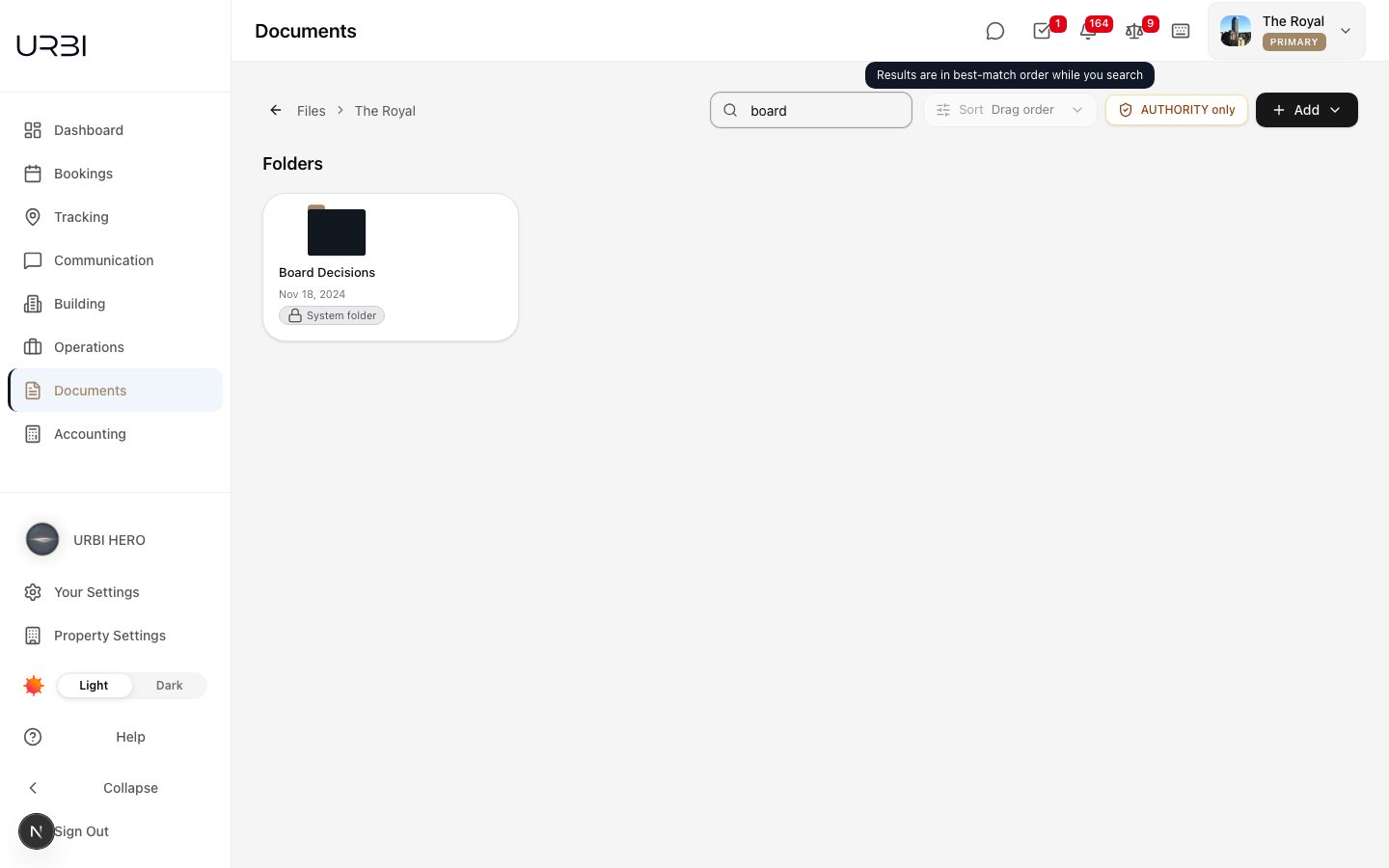
While you type in the search box, results are listed in best-match order. The Sort control is greyed out and shows "Results are in best-match order while you search" when you point at it. Clear the search and the list returns to your saved sort.
5. The same control on an assigned location's Documents tab
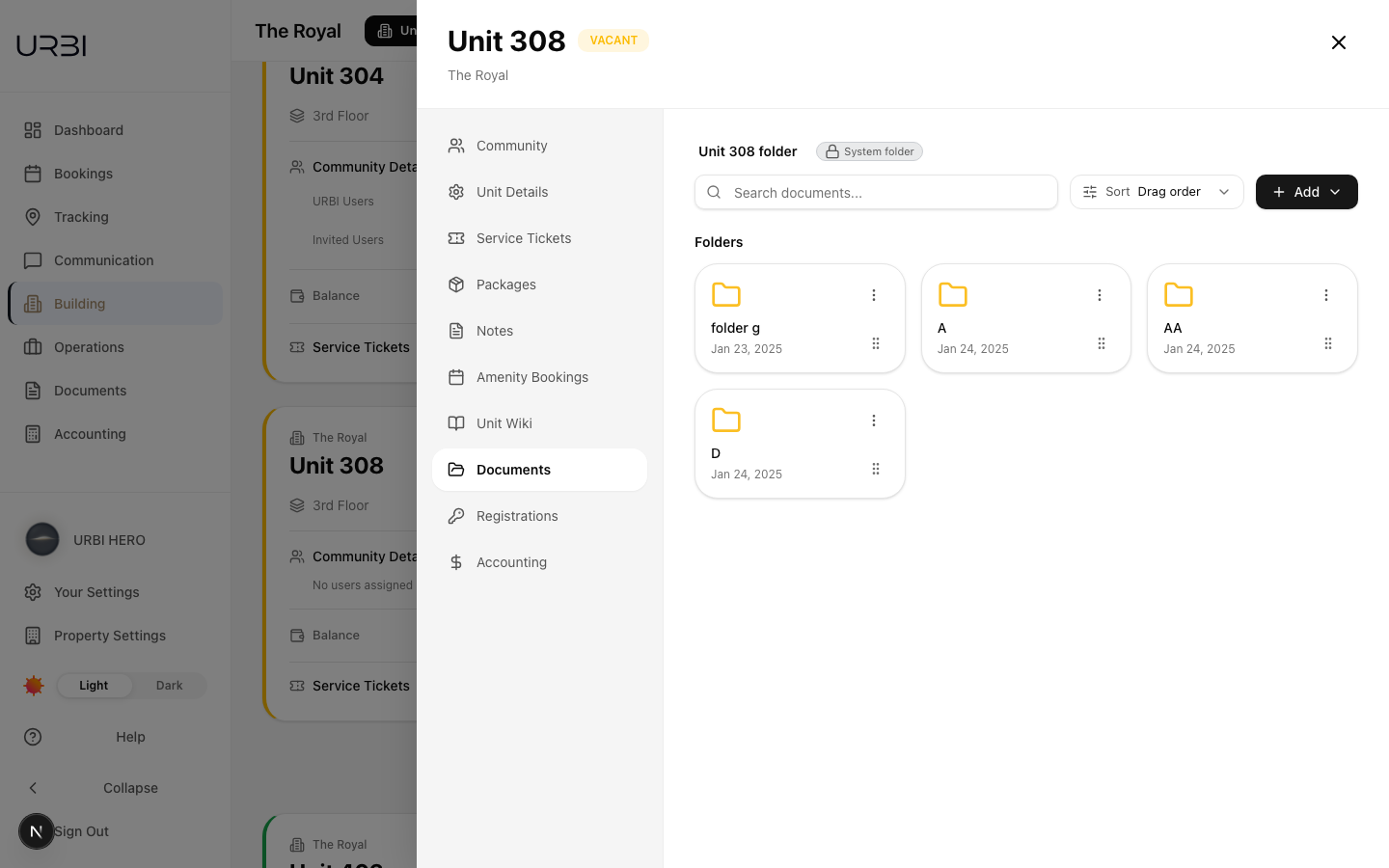
Open an assigned location, then its Documents tab. The same Sort control sits beside the search box and Add. It uses your saved choice, and in Drag order it shows the same team order and handles as the Documents page. Long folders on this tab now load more as you scroll, instead of stopping after the first 50 items.
If something does not save
- "Your sort choice was not saved": the Sort control goes back to your previous choice and the list does not change. Try again in a moment.
- "The new order was not saved": the list goes back to the order it had before your drag. This can happen when a colleague moved, deleted or restricted an item in the same folder at the same time. The list refreshes, so you can drag again.
- "More documents could not be loaded" on an assigned location's Documents tab: select Try again to load the rest of the folder.