

• Solutions for Every Building, Every Stakeholder

    URBI is the first Building OS powered by HERO AI. Whether you manage properties, own them, or operate them day to day, URBI transforms complex, disconnected workflows into a single, intelligent platform that drives efficiency and builds stronger communities.

    Role Benefits

    • For Property ManagersStreamline operations and enhance tenant satisfaction with centralized management tools.
    • For Building OperatorsSimplify daily tasks and maintenance with intelligent automation and workflow management.
    • For OwnersMaximize ROI and property value with comprehensive oversight and analytics.
    • For Finance TeamsClose faster with double entry books, trust accounting, and reconciliation that runs nightly.
    • For BusinessesConnect with building communities and expand your service offerings.

    Building Benefits

    • Residential BuildingsSimplify living with one app for bookings, packages, payments, and community updates.
    • Commercial BuildingsStreamline operations, vendors, and compliance while giving tenants a frictionless experience.
    • Education BuildingsManage facilities, visitors, and compliance for safer, smarter, more connected campuses.
    • Senior LivingAnswer families around the clock, publish life enrichment once, and see every community on one screen.
  • One Platform. Smarter Buildings.

    URBI centralizes daily operations and adds AI intelligence to transform complexity into clarity.

    Products

    • URBI KoreThe central hub where managers, owners, and staff run building operations in one place.
    • URBI KonnectA marketplace that connects buildings with trusted vendors, services, and community events.
    • URBI AccountingAI consolidation, invoices and receipts processed by AI, books pre reconciled before month end. In Beta.
    • URBI AIOne intelligence across URBI. HERO answers your team's questions, Arthur answers your community's calls, texts, and emails 24/7.

    Features

    • Operations & Workflow
    • Amenities & Booking
    • Events & Ticketing
    • Communication & Community
    • Payments & Transactions
    • Data & Compliance
    • HERO AI Intelligence
    • IoT & Hardware Integration
    • Community Experience
    • Accounting (In Beta)
    View All
  • Customers
    • All ResourcesGuides, support, and customer stories in one place
    • Help CenterGuides and answers for every part of URBI
    • BlogWhy URBI works the way it does
    • ReleasesEvery update we ship, in plain language
    • System StatusHow every part of URBI is running right now
    • About UsLearn about our story and mission
    • MilestonesHow URBI got here and where it is going
    • CareersWe're HiringJoin our growing team
    • FAQStraight answers about URBI, HERO and Arthur
    • ContactGet in touch with us

Schedule a Demo

  1. Help Center
  2. /Operations
  3. /Vendors and Work Orders
  4. /View a vendor's full bank number

View a vendor's full bank number

The Payment details card normally shows only the bank name and the last 4 digits. Permitted payment staff can reveal the full number when they need it, for example to check where a bill will be sent....

Last updated November 16, 2026

Operations
  • Approvals: decide expenses, board votes and RFPs in one place
  • Board Decisions: overview
  • Confirming packages, and what a refused package means
  • Document sharing
  • Finding the packages for one home
  • How to approve expenses and RFPs in Approvals
  • How to create a decision
  • How to create a time limited public link
  • How to generate the PDF report
  • How to run a vendor RFP through Board Decisions
  • How to share a file or folder
  • How to sort and arrange folders and files
  • How to upload with drag and drop
  • How to vote and finalize a decision
  • How to vote on board decisions in Approvals
  • Operations
  • Troubleshooting
  • Troubleshooting document sharing
  • When a scanned package needs a look
    • Add Assignees to a Service Ticket
    • Attach a Vendor to a Service Ticket
    • Convert a Service Ticket to a Task
    • Create a Service Ticket
    • Documents on a Service Ticket
    • How the Emergency Number Is Chosen
    • How to choose who receives resident service requests
    • How to Convert a Service Ticket into a Board Decision
    • How to download, rename and remove files on a task
    • How to filter service tickets and tasks
    • How to Reassign Work When Removing a Team Member
    • How to Set the Emergency Line
    • How to Sign Off on Vendor Work
    • Notes on a Ticket, and What the Resident Can See
    • Service Ticket Statuses Explained
    • Service Tickets, Troubleshooting
    • Service Tickets: Glossary
    • Service Tickets: Overview
    • Set Up Recurring Service Tickets
    • The History on a Ticket: What It Records
    • The Tabs on a Service Ticket, Explained
    • Troubleshooting
    • What Residents See When They Create a Ticket
    • What the Ticket Activity Tab Records for Vendors
    • What's New in Service Tickets
    • Who Can Do What on a Service Ticket
    • Add Assignees to a Task
    • Create a Task
    • Organize Tasks with Categories, Projects, and Labels
    • Set Up Recurring Tasks
    • Access Request Statuses Explained
    • Choosing Who Receives a Request for Access
    • How to Send a Request for Access
    • Mandatory vs Request: Which One to Send
    • Recording an Answer on Someone's Behalf
    • Requests for Access: Glossary
    • Requests for Access: Overview
    • Requests for Access: Troubleshooting
    • Reschedule Requests: How They Work
    • Sending a Reminder for a Request That Has Not Been Answered
    • What the Recipient Sees and How They Answer
    • Awarding the Work
    • Comparing Proposals
    • How to Invite Vendors to an RFP
    • Requests for Proposal: Glossary
    • Requests for Proposal: Overview
    • Requests for Proposal: Troubleshooting
    • RFP Statuses Explained
    • What a Vendor Sees and How They Submit a Proposal
    • Asset Impact: Overview
    • Asset Impact: Troubleshooting
    • Cancel Bookings or Block New Ones
    • Closure Statuses Explained
    • Confirming a Closure, and Why Scheduling Is Not Enough
    • How to Close an Amenity for Scheduled Work
    • Bank detail change alerts
    • Enter or replace a vendor's bank details
    • How to view and add a vendor's expenses
    • Requesting Completion, and Technician Notes
    • Vendor Billing Tab overview
    • Vendor Billing Tab, FAQ
    • View a vendor's full bank number
    • What a Contractor Sees on a Work Order
    All collections

    On this page

    • Who can use it
    • View the number
    • Open attached proof
    • What the history records

    The Payment details card normally shows only the bank name and the last 4 digits. Permitted payment staff can reveal the full number when they need it, for example to check where a bill will be sent. Every view is recorded before the number appears.

    Who can use it

    You need the Manage payments permission for the property where you are working. Without that permission, you can see that details are on file, but View number, Replace and Open proof are hidden.

    View number appears only when the full number is on file. When the vendor linked their account by bank login, only the last 4 digits are known, and the card says so: "Linked by the vendor by bank login on (date). Only the last four digits are known."

    The Payment details card with the View number button.
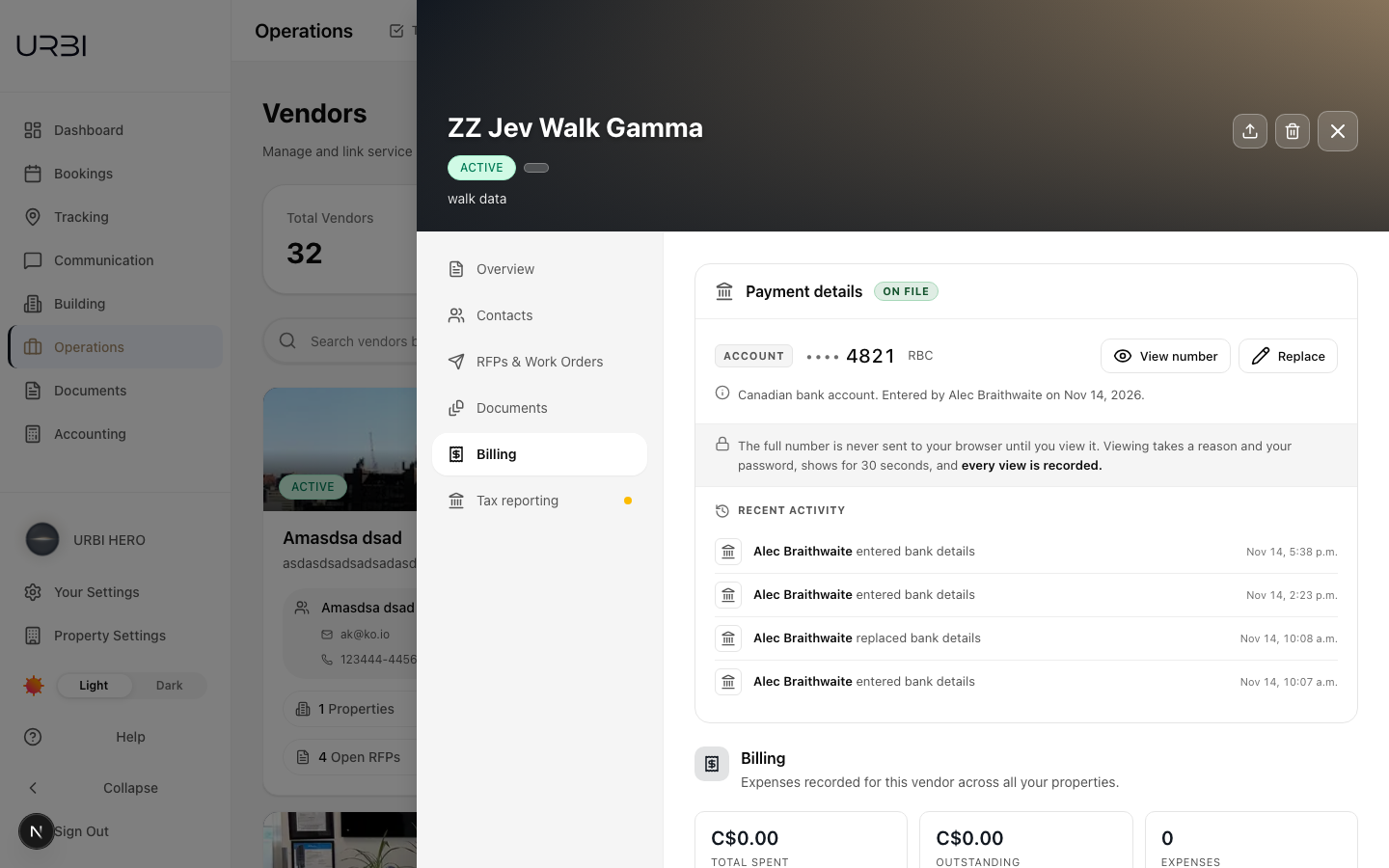
    The Payment details card marked On file, showing the last 4 digits and the bank, the View number and Replace buttons, and a note that viewing takes a reason and your password, shows for 30 seconds and every view is recorded

    View the number

    1. Open the vendor from the Vendors page and select Billing.
    2. On the Payment details card, select View number.
    3. Choose why you need it: Checking a payment, Correcting the record, The vendor asked for it or Something else. Add a note if you choose Something else.
    4. Enter your URBI password.
    5. Select View for 30 seconds.

    The numbers appear for 30 seconds. For a Canadian account you see the institution, transit and account numbers; for a US account you see the routing number and the account number. You can select Hide now sooner. The numbers also hide when you close the window, close the vendor or switch to another browser tab.

    You can view up to 10 numbers an hour at each property. If you reach the limit, wait until an earlier view is more than an hour old.

    If something goes wrong, you see Couldn't show the number. Try again. No number is shown on any error, and a refused attempt is not recorded as a view.

    Open attached proof

    If a void cheque or bank letter is attached, the card shows Bank proof attached with the file name, whether it is a PDF or an image, its size and the date it was added. Select Open proof.

    Proof can show the full bank number, so opening it works the same way as viewing the number: pick a reason, enter your password, and select Open proof. It counts toward the same 10 an hour and is recorded in the history.

    The proof opens in a new tab. The link works for 60 seconds; after that, open it again from the card.

    What the history records

    Every successful view records your name, the vendor, the property, the time, what you viewed and your reason in the accounting history. The bank number and the proof itself are never written to the history or to any notification.

    The Recent activity area on the card lists bank detail entries, replacements and views, so staff can see what happened and when.

    Related: Enter or replace a vendor's bank details · Bank detail change alerts · Vendor Billing Tab overview

    Was this article helpful?

    Related articles

    Operations

    Enter or replace a vendor's bank details

    When a vendor has not added bank details, you can enter them yourself instead of waiting for the vendor to log in. You can also replace details already on file. Every entry and replacement is...

    Read
    Operations

    How to view and add a vendor's expenses

    View a vendor's expenses Go to the Vendors page and click the vendor you want. In the vendor drawer, click the Billing tab on the left. Review the Total spent / Outstanding / Expenses tiles for a...

    Read
    Operations

    Bank detail change alerts

    Bank details decide where a vendor is paid, so URBI announces every change. The messages say who changed what and when, and never include any bank numbers. When alerts are sent Payment staff are...

    Read
    Operations

    Vendor Billing Tab overview

    The Billing tab lives inside a vendor's profile and gives you that vendor's expense picture in one place, so you do not need to switch over to the Accounting → Expenses screen and filter by vendor....

    Read
    All Operations articlesAsk the URBI team
    URBI

    URBI is the Building OS, founded in Calgary in 2023. One platform with HERO AI built in, running thousands of units for property managers, condo boards and owners.

    Solutions

    • All Solutions
    • For Property Managers
    • For Building Operators
    • For Owners
    • For Finance Teams
    • For Businesses

    Building Benefits

    • Residential Buildings
    • Commercial Buildings
    • Education Buildings
    • Senior Living

    Products

    • All Products
    • URBI Kore
    • URBI Konnect
    • URBI AI
    • URBI Accounting (Beta)

    Company

    • About URBI
    • About Us
    • Milestones
    • Reviews
    • FAQ
    • CareersWe're Hiring
    • Contact

    Resources

    • All Resources
    • Help Center
    • Blog
    • Releases
    • System Status
    • FAQ
    • For AI assistants

    Compare

    • Compare Us to Residential
    • Compare Us to Commercial
    • Compare Us to K-12

    Legal

    • Security & Privacy
    • Terms & Conditions
    • Terms of Service for Konnect

    © 2026 URBI. All rights reserved.

    Privacy PolicyTerms of Service

    Schedule a Demo