


Finish and sign the minutes
Minutes are a separate designed document in the same visual style as the booklet that goes to the board (on a commercial property URBI calls them the owners). URBI drafts them from the agenda,...
Last updated
Minutes are a separate designed document in the same visual style as the booklet that goes to the board (on a commercial property URBI calls them the owners). URBI drafts them from the agenda, attendance, motions, votes and the questions you answered on the pages. You check each draft, add your notes and choose what goes in.
1. Open the composer
After the meeting ends (see Run a live board meeting), select End and write the minutes, or on the package page select Minutes. The composer has three steps: What goes in, Notes and draft, Preview and share.
The Board meeting card after the meeting has ended. Minutes is now the main action.
Board meeting
Tuesday, Sep 29, 7:00 PM
| Agenda | 11 items, page 2 of the booklet |
| Attendance | 5 of 6 present, quorum met |
| Meeting | 7:02 PM to 8:41 PM |
Meeting modeMinutes
Meeting mode: Ended 8:41 PM
2. Choose what goes in
Attendance and quorum, and the items with their outcomes, are always included. Tick any of the rest: motions with mover, seconder and tally, your notes on each item, general notes, URBI's discussion summaries, action items, the next meeting and signatures. You can also tick pages or whole sections from the package, such as the at-a-glance numbers or a chart, to print after the items. The wording beside each switch describes your meeting as it was: when no next meeting is set it says so, and the motions line mentions motions from the floor only when one was moved from the floor.
Step 1, What goes in: switches for the meeting record, then pages from the package. Pages with sensitive details cannot be picked.
What goes in the minutes
The first two are always in.
| Attendance and quorum | From the meeting | Always in |
| Items and outcomes | From the meeting | Always in |
| Motions | From the meeting | On |
| Your notes on each item | Yours | On |
| Discussion summaries drafted by URBI | Draft | On |
| Signatures | From the meeting | On |
From the package · tick a page, or a whole section
| Page 5, At a glance | In |
| Page 8, Cash flow statement | In |
| Page 13, Collections | Has sensitive details |
Item 6 is marked sensitive, so pages showing its unit, owner or amounts stay out of the minutes.
3. Notes and draft
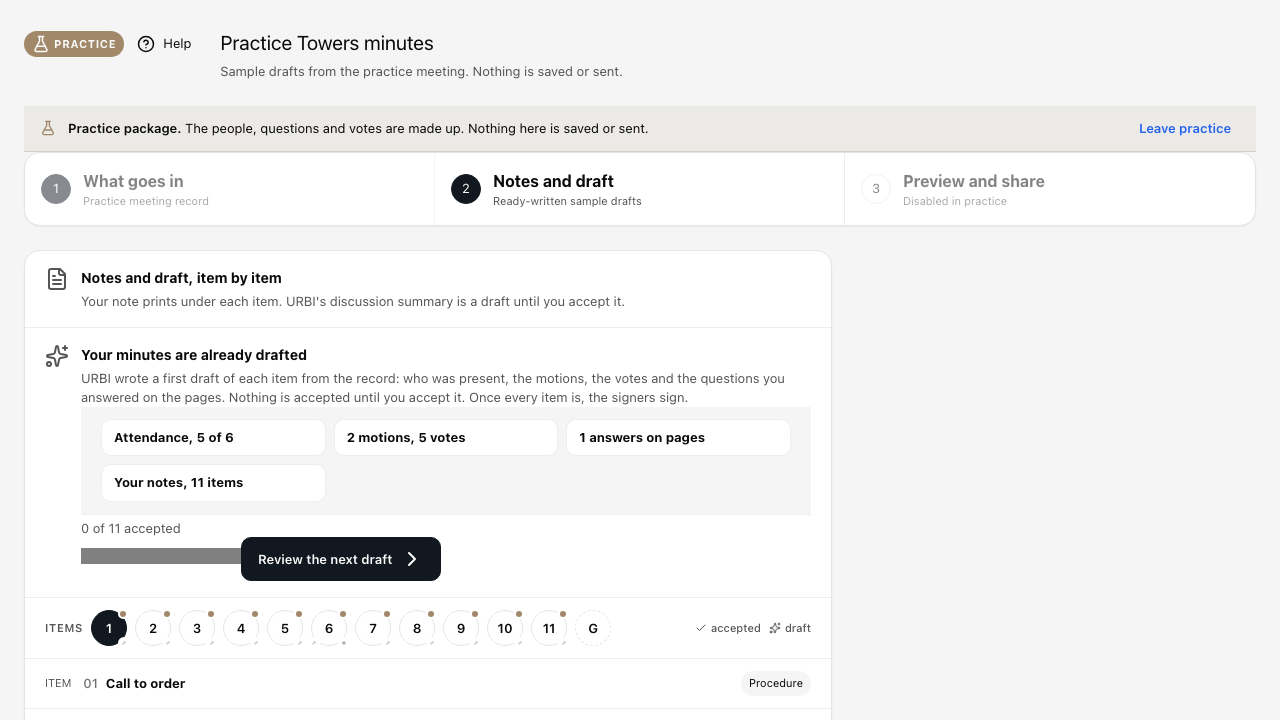
Your minutes start drafted
The first time you open the minutes after the meeting, URBI writes a first draft of every item that has an outcome or a note from you. A banner says Your minutes are already drafted and lists what the drafts were built from: attendance, motions and votes, the answers you gave on the pages, and your notes. A progress line shows how many items you have accepted, for example 3 of 11 accepted, and Review the next draft takes you to the next one.
Nothing is accepted until you accept it, and URBI never overwrites a summary you already wrote or accepted. Items marked sensitive are never drafted. Answered questions help the draft but are not printed as a separate block. If an item could not be drafted it says Couldn't draft this one, write it or try again; if the daily drafting limit is reached it says Try again tomorrow. To start an item's draft again from the record, select Redraft from the record.
A motion started from a page prints About page N under its text, so the minutes show which page it was about.
Go through each item
Go through the items one by one. Your note prints under the item exactly as you wrote it. For the discussion summary, you can use Draft it for me, Polish my note or Fill in my points. A draft is marked until you accept it with Use this; the minutes page shows your note only until then. The AI writes only from the record and your note and never adds what was not said. If a draft adds details that are not in the meeting record, URBI does not use it. A notice beside the AI buttons says The draft was not used and The draft added details that are not in the meeting record, so it was not used., with Try again to ask for a new draft.
Items marked sensitive keep their decision but leave out the unit, the owner and the amounts. Readers who are not staff, and staff who are not running the meeting, see only the title, the Sensitive mark and the result. On a Sensitive vendor vote, vendor names show but prices do not.
Step 2, Notes and draft: your note prints as written. URBI's summary stays a draft until you select Use this.
Notes and draft, item by item
Your note prints under each item. URBI's discussion summary is a draft until you accept it.
Item 5 of 11 · Elevator maintenance contract renewal Decision
Outcome: ThyssenKrupp chosen, 4 to 1 · closed by itself 7:31 PM
Draft it for mePolish my noteFill in my points
The draft was not used
The draft added details that are not in the meeting record, so it was not used.
Redraft from the record
URBI only writes from the record and your note. It never adds what was not said.
Your note, printed under the item
ThyssenKrupp includes 24-hour callback and a quarterly rope inspection; contract to be signed before Oct 31.
Discussion summary Draft
Members reviewed two bids for the elevator maintenance contract: Otis Elevator at $1,650 and ThyssenKrupp at $1,540.
Written by URBI from the record and your note. It is a draft until you accept it; the minutes page shows your note only until then.
Use thisTry againUndo
A sensitive item: the decision stays, the details are left out, and there is nothing to draft.
Item 6 of 11 · Collections matter concerning one unit Decision
Outcome: Carried 5 to 0 · Sensitive details withheld
Sensitive itemOn
When on, identifying and financial details are withheld while the decision remains.
Draft it for mePolish my noteFill in my points
Sensitive items print a fixed line, so there is nothing to draft.
You can still type a note of your own.
4. Preview and share
Check the pages as they print. The preview fits inside its card, so Back to the draft and Save as PDF stay usable, and the pages strip shows the whole cover as a thumbnail like every other page. The cover shows the meeting time with the property's own time zone, for example MDT for a Calgary property or EDT for a Toronto one. Minutes for a meeting with no date can still be opened and saved as a PDF; they print Date to be confirmed. Then select Save and share with the board to share them with the same board members as the package (see Review and share a board package), or Save only, share later. If the signing copy could not be prepared, the screen says Signers cannot sign yet: the updated signing copy could not be prepared. Select Retry. While it runs, it says Preparing the updated signing copy. A saved set of minutes becomes the "approve the last minutes" item on your next package's agenda (see Build the agenda for a board meeting).
Step 3, Preview and share: check the pages as they print, then save and share.
Preview
10 pages · 8 from the meeting, 2 from the package
Minutes pages, as they print
Back to the draftSave as PDF
| Save and share
Sent to the 5 named board members, the same people who received the package, as a separate document.
Their own document, 10 pages with their own page numbers. The sent package is locked and never changes.
Questions land in the package's inbox conversation.
Save and share with the board
Save only, share later
|
After saving: what was sent, who has signed, and a Retry if the signing copy could not be prepared.
Minutes saved, shared to the 5 board members
Their own document, 10 pages, alongside the package. Questions land in the package's inbox. Claire Dubois and Dana Whitfield sign in their reader.
Signers cannot sign yet: the updated signing copy could not be prepared.
They can sign after the updated copy is ready.
Retry
While it runs: Preparing the updated signing copy
Sent to 5 | Signed 0 of 2 | Pages 10 |
5. Signatures
When the board has approved the minutes at the next meeting, the officers who sign (for example the secretary and the president) see a sign bar in their reader (see Read a board package and vote). They review the minutes, select Sign, type their full name and select Confirm signature. Once signed, the minutes are locked.
The sign bar in the officer's reader, and the same bar once they have signed.
The board approved these minutes on Oct 27. Sign as Secretary.
Sign
Signed by Claire Dubois, Secretary, Oct 27, 2026. Waiting for Dana Whitfield, President.
Confirming a signature: type the full name, then select Confirm signature.
Minutes · Tuesday, Sep 29, 2026
Sign as Secretary
The board approved these minutes on Oct 27, 2026. Your typed name and the date go on page 10 as your signature.
Type your full name
Claire Dubois
Date
Oct 27, 2026
Dana Whitfield, President, signs after you
Your name must match Claire Dubois
CancelConfirm signature
To change locked minutes, select Reopen minutes. A confirmation names the signers who will be asked to sign again. Reopen and clear signatures clears every signature, the composer opens for editing, and the edited minutes are sent for signing again. No email is sent.
Signed minutes are locked. Reopen minutes asks first and names the signers who will be asked again.
Signed minutes are locked. Reopening them clears every signature and asks the signers again.
Reopen minutes
Reopen these minutes?
Board meeting, Tuesday, Sep 29, 2026
This clears 2 signatures. Claire Dubois and Dana Whitfield will be asked to sign again when you share.
CancelReopen and clear signatures