


How to review late bank items
Sometimes the bank sends a transaction dated in a month you have already finalized, for example a cheque that cleared on the last day of the month but only appeared in a later file. URBI never posts...
Last updated
Sometimes the bank sends a transaction dated in a month you have already finalized, for example a cheque that cleared on the last day of the month but only appeared in a later file. URBI never posts it into the finished month. Instead it keeps the item on the Late items tab, and a person decides what to do with it.
Late items come from accounts read from the National Bank daily file. See How the National Bank daily file keeps your reconciliation up to date.
Who can use it
- Anyone with General Ledger view access for the property can open the Late items tab and see both lists.
- Reviewing an item needs General Ledger Full access (edit, delete and reconcile). Without it, the lists show but the Review button does not.
Find the Late items tab
- Go to Accounting, open the General Ledger page and click Reconciliation.
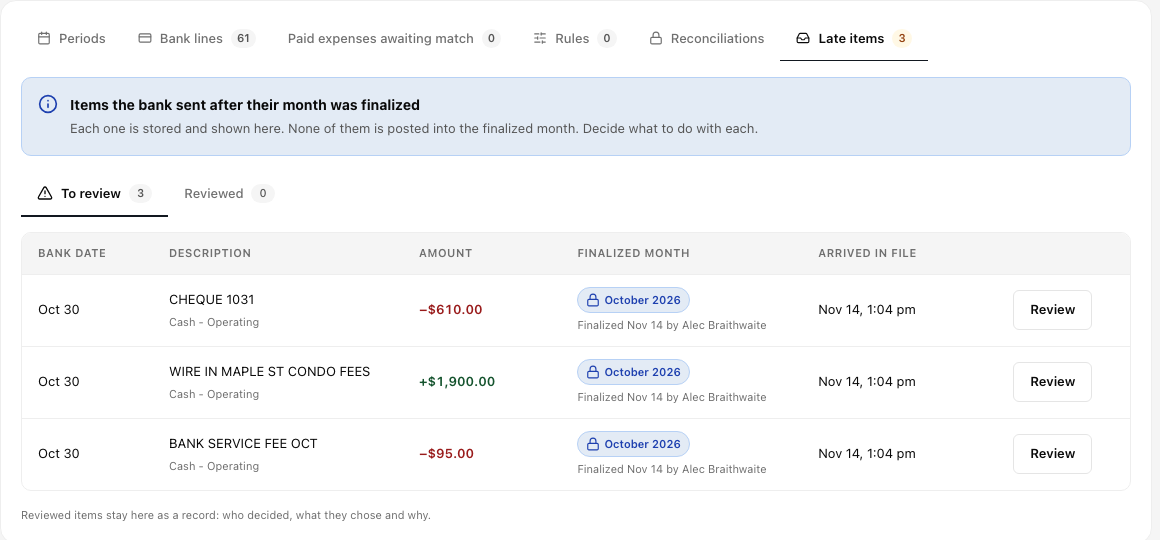
- Click the Late items tab. While items are waiting, the tab shows how many.
The tab has two lists:
- To review: items waiting for a decision. Each row shows the bank date, the description and account, the amount, the finalized month it belongs to (with who finalized it and when), and when it arrived in the bank file.
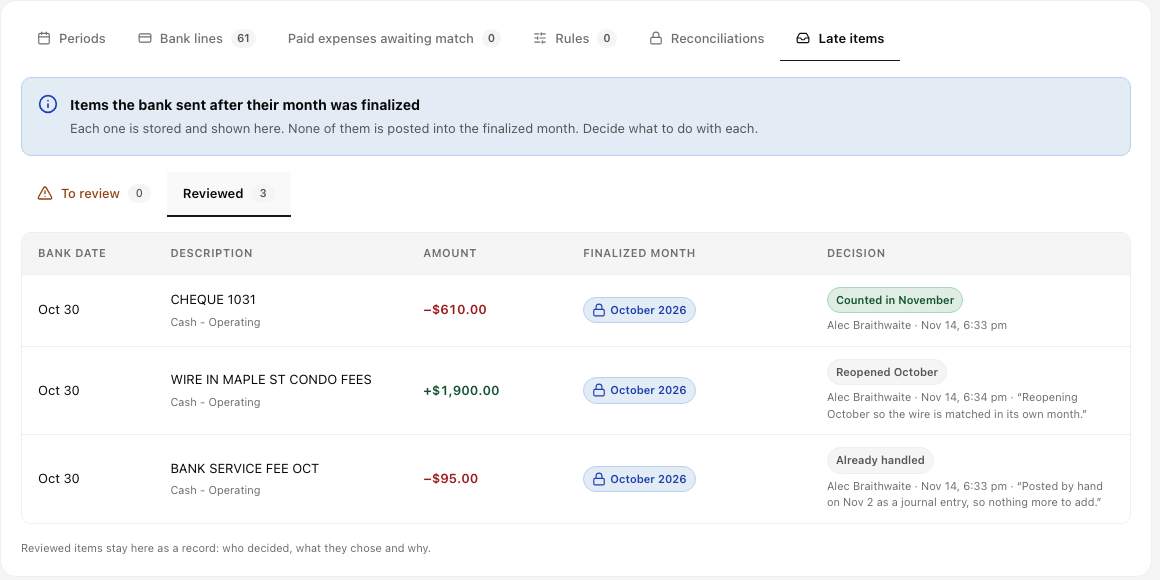
- Reviewed: every decision already made, kept as a record of who decided, what they chose and why.
When a list is empty, it says so. To review shows Nothing to review: when the bank sends an item dated in a finalized month, it appears here for a decision. Reviewed shows No decisions yet until someone counts, reopens or marks an item as handled.
If the lists cannot load, you see Could not load late items with a Try again button.
Review an item
- On the To review list, click Review next to the item.
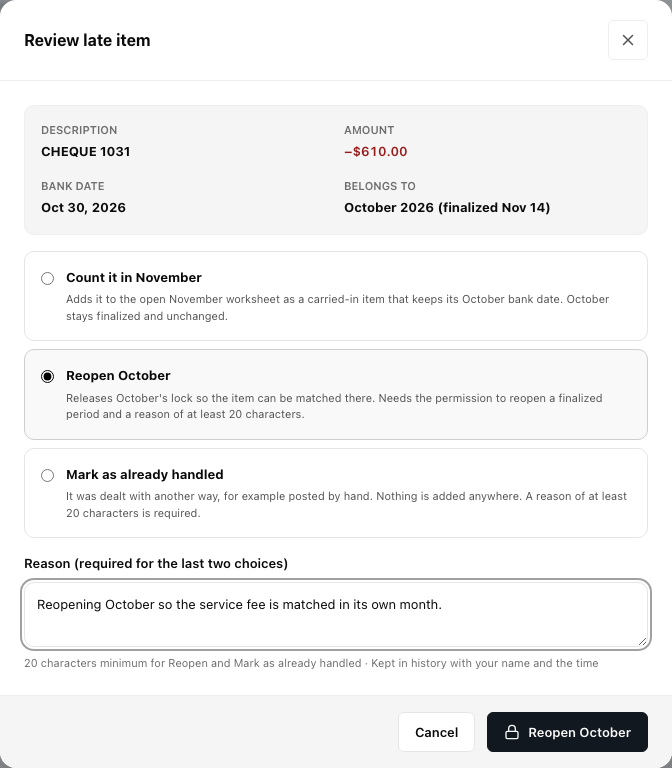
- The Review late item window shows the description, amount, bank date and the month it belongs to.
- Choose one of three options:
- Count it in the open month: adds the item to the open month's worksheet as a carried-in line that keeps its original bank date. The finished month stays finalized and unchanged. On the open worksheet the line shows Carried in from the month it belongs to, and you reconcile it there.
- Reopen the finished month: releases that month's lock so the item can be matched in its own month. This needs the permission to reopen a finalized period. The month goes back to in progress, and you finalize it again when it balances. Until you do, the next month's worksheet reminds you that the earlier month is reopened and must be finalized first.
- Mark as already handled: use this when the item was dealt with another way, for example posted by hand. Nothing is added anywhere.
- For Reopen and Mark as already handled, type a reason of at least 20 characters (up to 500). The reason is optional for counting the item in the open month.
- Click the button at the bottom, which names your choice (for example Reopen October).
The item moves to the Reviewed list with the decision, your name, the time and your reason. An item can only be reviewed once.
Good to know
- Late items never stop you finalizing the next month. The Finalize period window tells you how many are waiting and offers Open Late items.
- While an item waits for review, URBI does not match it automatically, and actions on that line from the Bank lines tab are refused until you review it.
- When a finished month is reopened, any other items waiting for that month move to Reviewed as Reopened, so they can be matched in that month like any other line.
- On a phone, each late item is shown as a card with its own Review button.