


How to stop or end a repeating charge
A repeating charge (a schedule) keeps creating charges until you stop it. You can stop it now, or end it on a date you choose. Either way, the confirmation box lists the later charges that will be...
Last updated
A repeating charge (a schedule) keeps creating charges until you stop it. You can stop it now, or end it on a date you choose. Either way, the confirmation box lists the later charges that will be voided, so you see the effect before you agree.
Who can use it: Staff, property managers and board members with Manage charges for the property.
Where to find it: Building > Units, open the unit, Accounting > Charges. Repeating charges are listed under Recurring schedules at the top.
Stop a schedule now
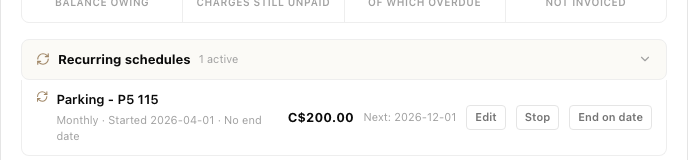
- Open the Charges tab. Find the schedule under Recurring schedules. Each one shows its frequency, its amount, and the buttons Edit, Stop and End on date.
A repeating charge with its three buttons.
- Click Stop.
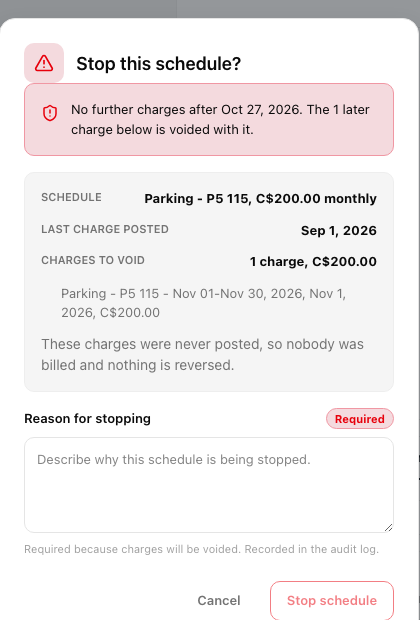
- Read the box. It says "No further charges after" today's date, and when charges were already created for later dates it says how many will be voided with it. Last charge posted shows the last charge that stays. Charges to void lists each one with its date and amount.
- If any charges will be voided, type a Reason for stopping. It is required and is recorded in the audit log.
- Click Stop schedule.
The Stop confirmation with the list of charges that will be voided.
End a schedule on a date
Use this when the charge should run until a known day, for example the end of a rental.
- Click End on date on the schedule.
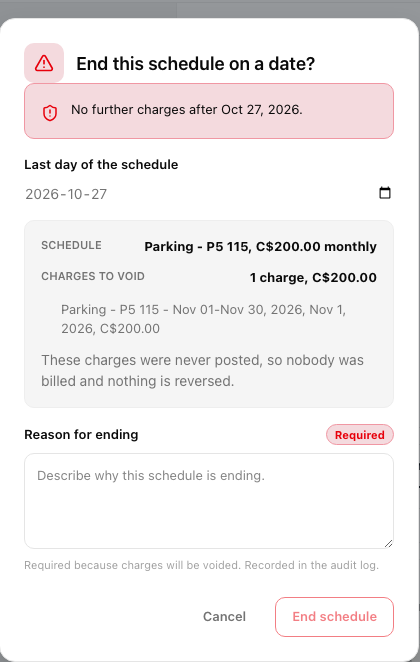
- Under Last day of the schedule, pick the date. It cannot be in the past. Last charge shows the last charge date that falls on or before it.
- Review Charges to void, type a Reason for ending when charges will be voided, and click End schedule.
The End on date confirmation.
What happens next
- Charges that were already posted before the stop stay in the list. You can void them one at a time, see How to void or delete a charge on a unit.
- A schedule you stopped no longer appears under Recurring schedules. The panel reads "No active recurring schedules. Charges a stopped schedule already posted stay in the list below."
- You can also stop a schedule from one of its charges. Open the charge and turn off Recurring charge, or use Stop schedule or End on date in the charge drawer. You get the same confirmation box.
- To start billing again after a stop, add a new repeating charge.