


How to filter Expenses: Bills, Reimbursements and Cheques
The Expenses page has one bar at the top that scopes the whole page, plus a smaller bar inside the Reimbursements and Cheques tabs for filters that belong only to them. Who can use it: Staff,...
Last updated
The Expenses page has one bar at the top that scopes the whole page, plus a smaller bar inside the Reimbursements and Cheques tabs for filters that belong only to them.
Who can use it: Staff, property managers and board members with accounting access. The Cheques tab also needs cheque permission.
Where to find it: Go to Accounting > Expenses.
Filter the bills
- Open the All Expenses tab and click into the bar at the top. Click Filter.
The filter list for bills.
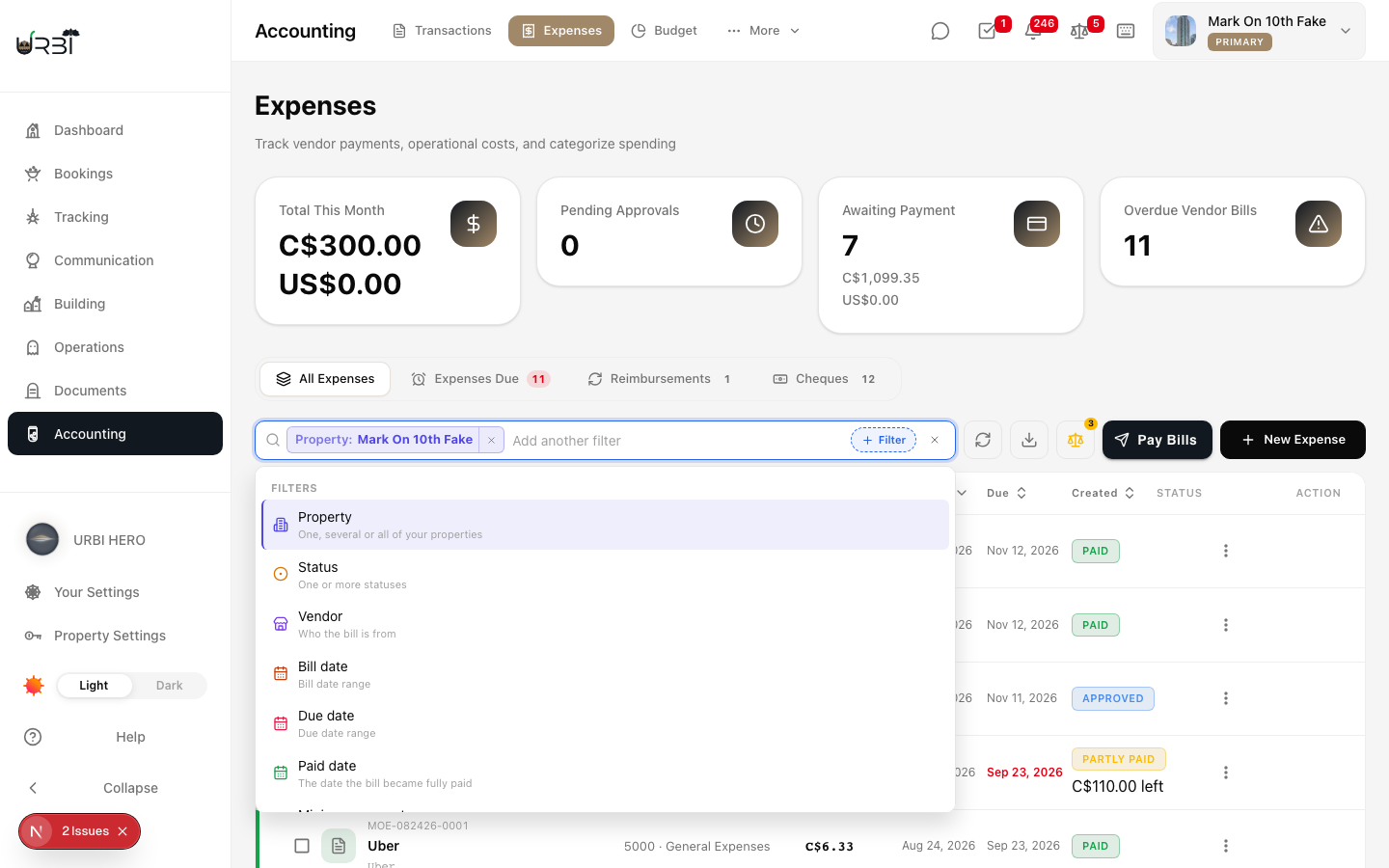
- Pick Property to look at one property, several, or All. The property you pick, and any search text, carry across the All Expenses, Reimbursements and Cheques tabs. Filters that only fit bills, such as vendor, are dropped when you switch to a tab where they do not apply.
- Add any of these:
- Status: one or more statuses.
- Vendor: who the bill is from.
- Bill date, Due date and Paid date: each a date range. Paid date is the date the bill became fully paid.
- Minimum amount and Maximum amount.
- Category (GL account), Source (how the bill arrived), Type and Billing Account.
- The count, the summary cards above the tabs and the Export button all follow what you chose.
Part-paid bills in the totals
- Awaiting Payment and a vendor's Outstanding figure count what is left to pay, including the unpaid balance of part-paid bills. A bill marked Partly paid with "C$110.00 left" adds C$110.00 to those figures, not its full amount.
- Each total shows one line per currency when your properties use more than one. Currencies are never added together.
Filter reimbursements
- Open the Reimbursements tab. The Property you chose above applies here. Use the bar inside the tab to add Status (one or more), Submitted by, Submitted (a date range), Minimum amount and Maximum amount. You can also type to search.
- If nothing matches, the tab says no reimbursements match your filters, which is different from having none at all. Clear the chips to see everything again.
Filter cheques
- Open the Cheques tab. Use the bar inside the tab to add Status, Bank account, Payee, Cheque number, Cheque date from and to, Minimum amount, Maximum amount, or Stale (cheques older than six months). With several properties in view, each cheque row names its property.
Impossible values are refused as you type
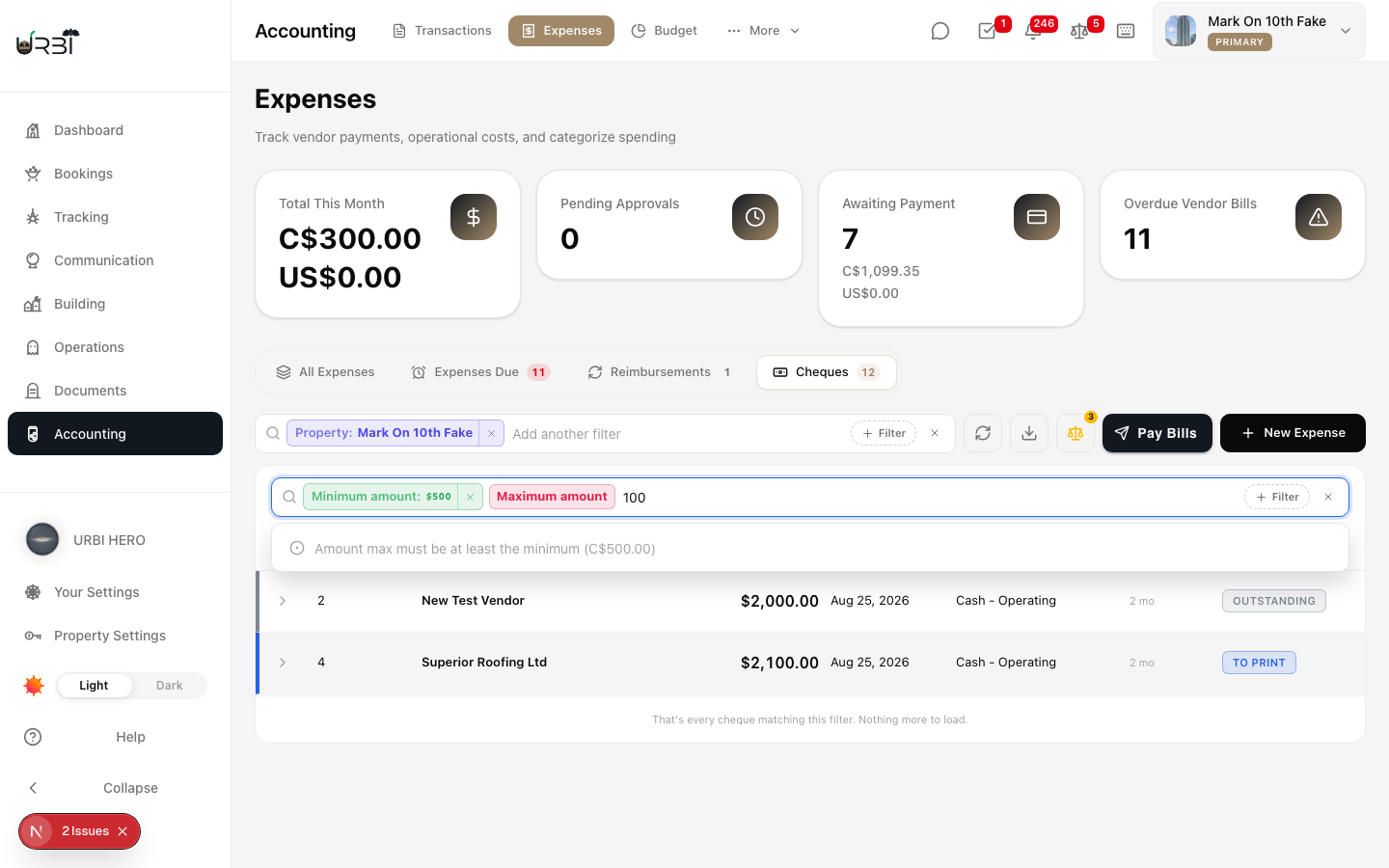
- The bars do not accept a value the list could never match. If you set a maximum amount below the minimum, a cheque number of 0, or a date that does not exist such as February 30, no choice is offered and a grey hint says why. Nothing is sent, so your list keeps its rows.
Typing 100 as the maximum while the minimum is 500: the bar explains instead of offering the value.
Clear and share
- Click the x at the right end of a bar to clear it, or the x on a chip to remove one filter.
- Copy the page link to share the view. See Choosing properties and reading totals.