


How to issue an estoppel statement for one or two accounts
This walks through preparing a statement, combining a unit's second billing account, setting the owner wording, charging the fee, and finding the statement afterwards. The examples use a unit with...
Last updated
This walks through preparing a statement, combining a unit's second billing account, setting the owner wording, charging the fee, and finding the statement afterwards. The examples use a unit with two accounts, held by Priya Raman and Morgan Ellis.
1. Pick the unit
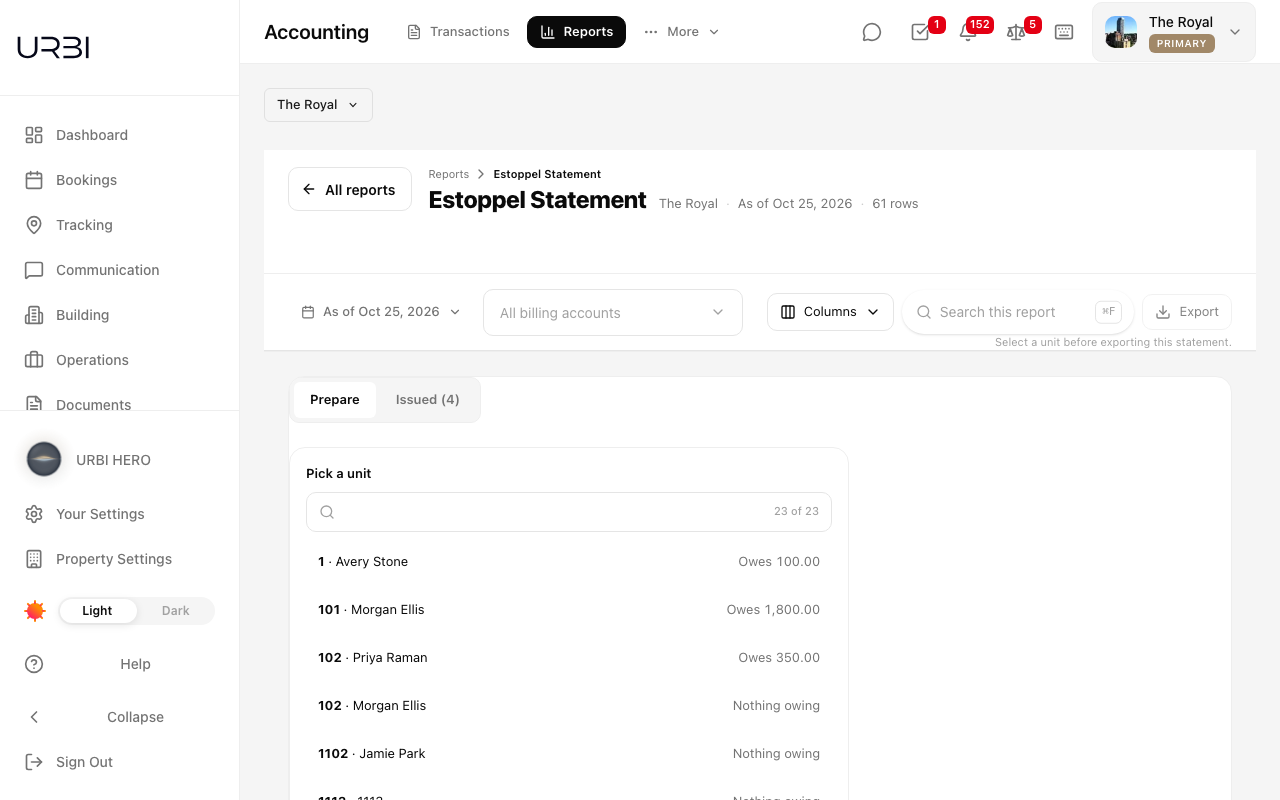
- Go to Accounting, then Reports, and open Estoppel Statement.
- On the Prepare tab, choose the As of date at the top. Charges count from the day they were raised: one raised on or before that date is included even if it falls due later, and one raised after it is left out.
- Under Pick a unit, search or scroll to the unit and select it. Each row shows what the account owes. A unit with two billing accounts appears twice, once per account.
2. Combine the second account (optional)
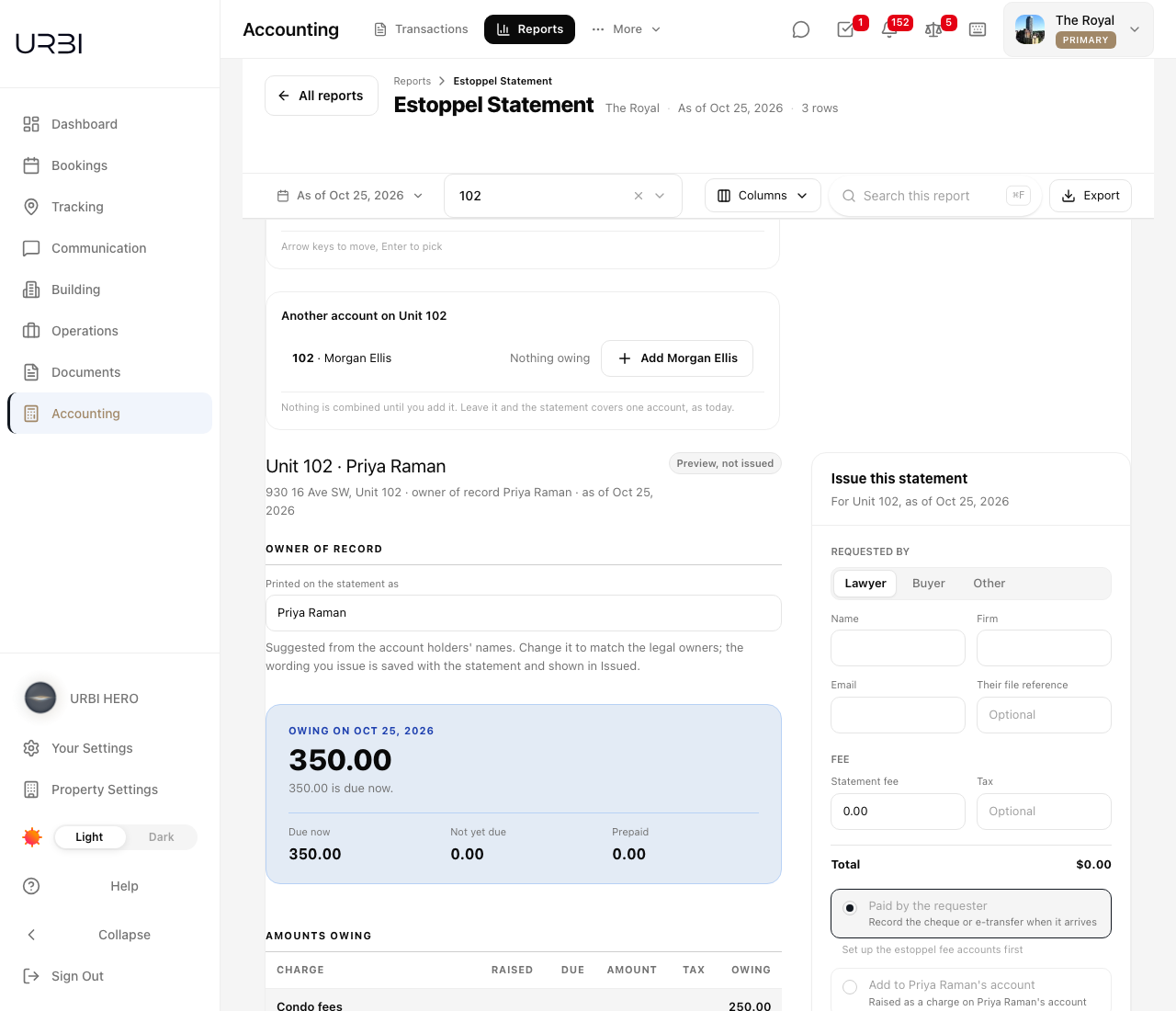
- After you pick the unit, look for the card Another account on Unit 102. It only appears when the unit has another billing account.
- Select Add next to the other account's name, for example Add Morgan Ellis.
- The statement now covers both accounts. The card changes to say both accounts are on the statement. To go back to one account, select Remove on the second account's block.
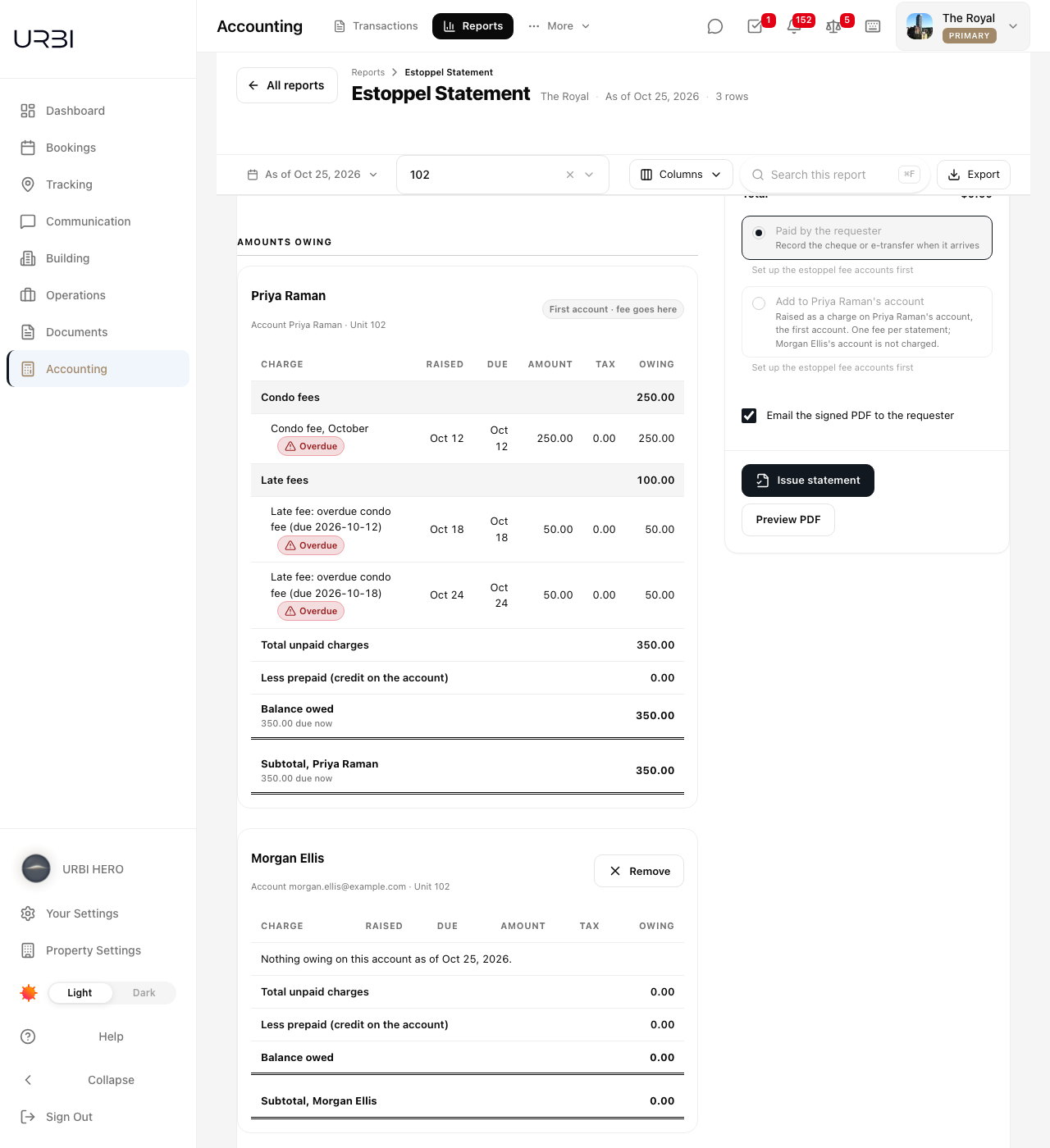
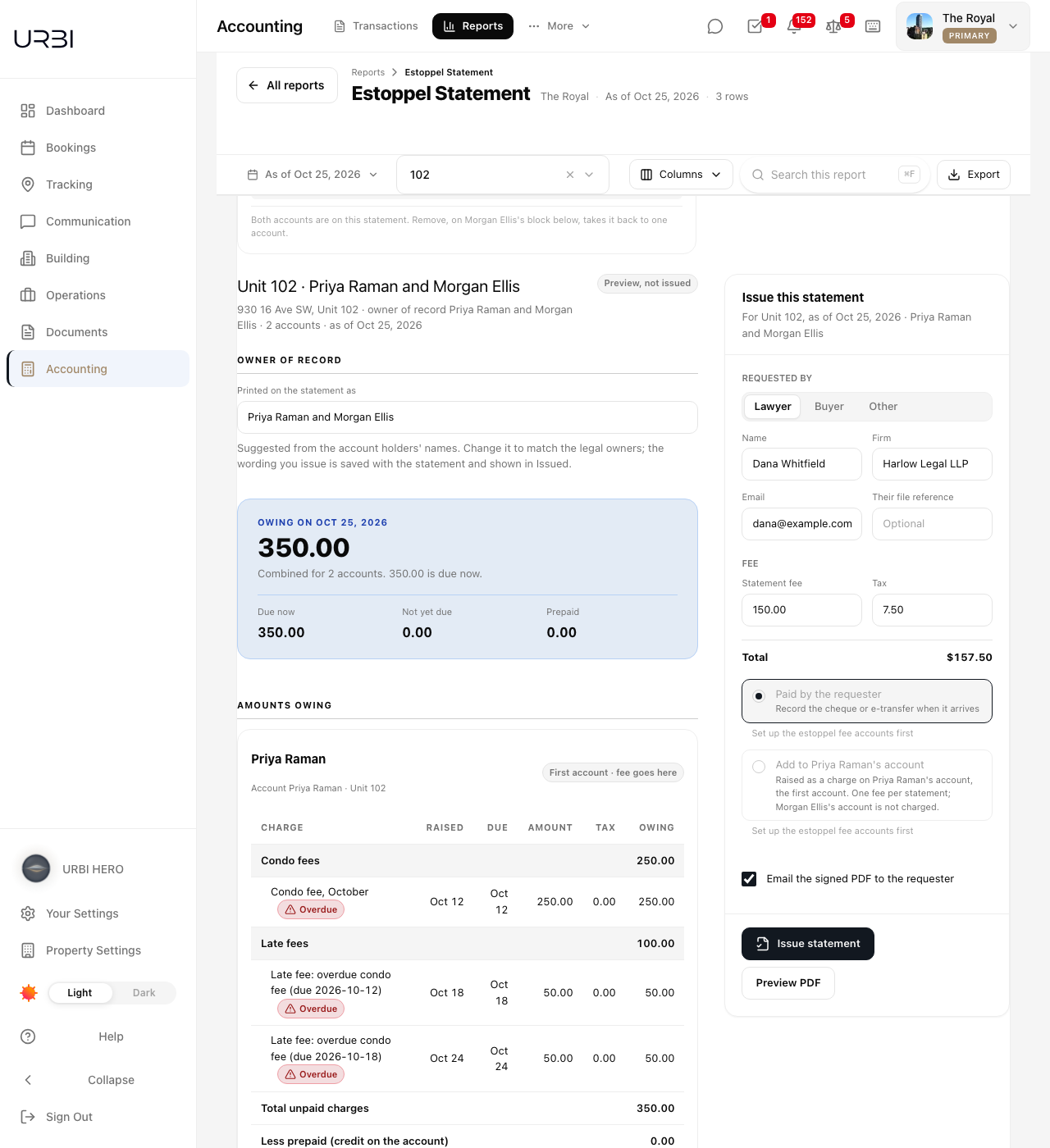
The account you picked first is the first account. It is marked First account · fee goes here, because the statement fee is raised on it.
3. Check the account blocks
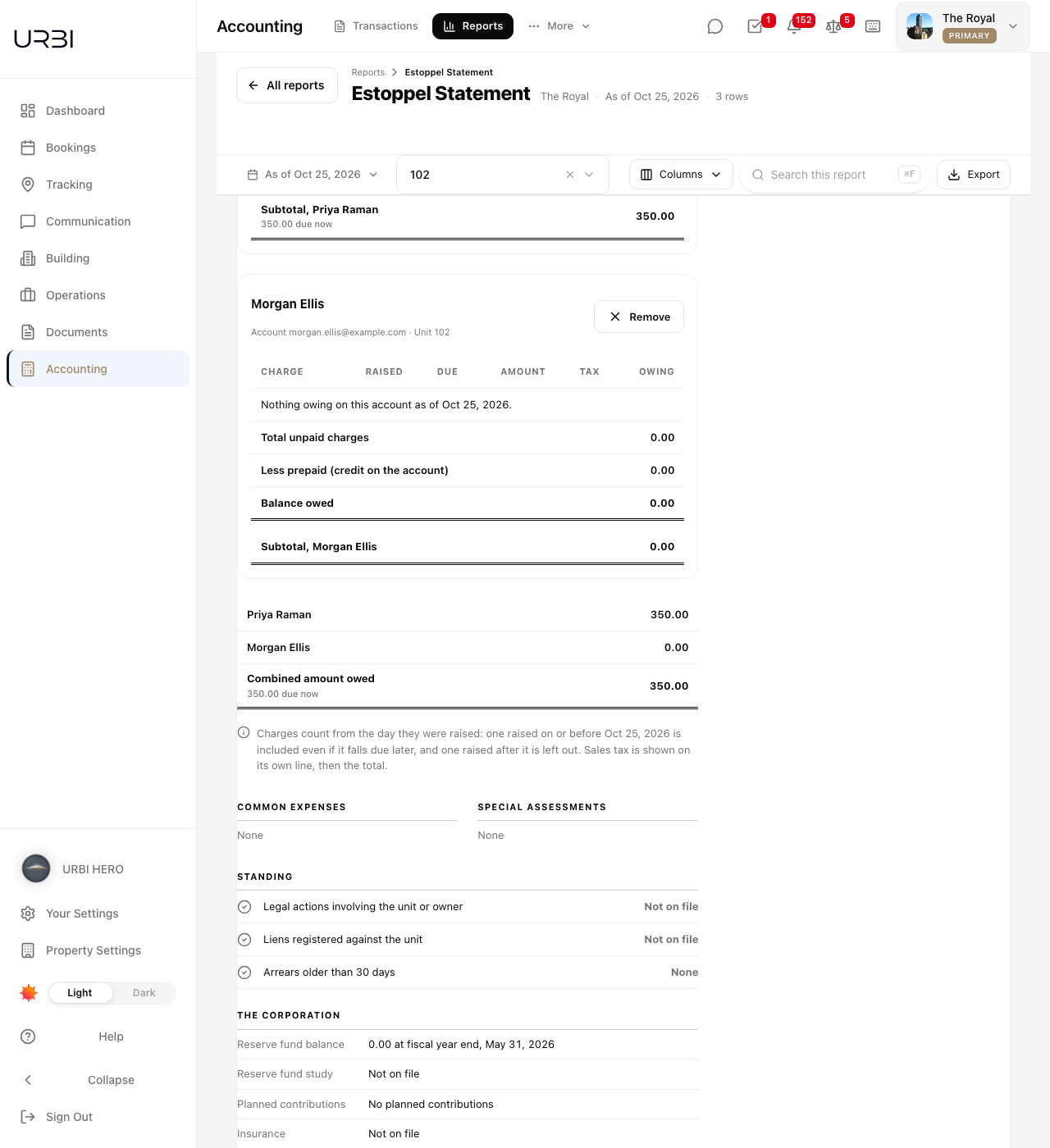
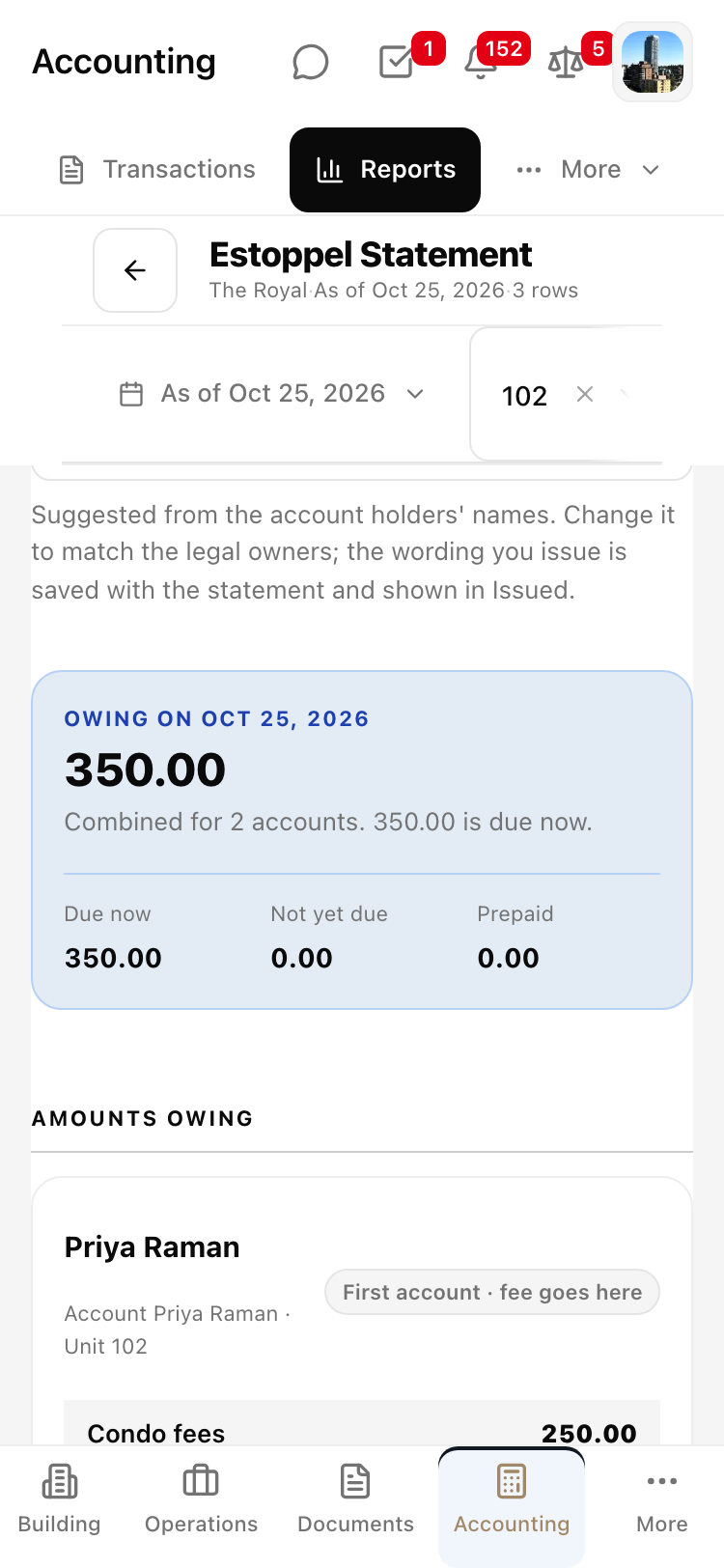
Scroll to Amounts owing. Each account has its own block with its own charges, its own total unpaid charges, any credit on the account, and its own Subtotal. An account with nothing owing says so, for example "Nothing owing on this account as of Oct 25, 2026."
Below the blocks, one line per account and a Combined amount owed show the single figure the statement reports. The owing summary near the top says "Combined for 2 accounts" with the same total.
4. Set the owner of record wording
- Under Owner of record, the field Printed on the statement as is filled in from the account holders' names, for example "Priya Raman and Morgan Ellis".
- Change it to match the legal owners if it needs to differ. Your wording is kept when you change the date or the accounts. If you change the accounts after editing, you are offered the new suggestion instead of losing your text, and Reset to suggested puts the suggestion back.
- The field cannot be blank. Preview and Issue stay blocked until there is a name.
The wording you issue is saved with the statement, printed on it, and shown in the Issued list.
5. Fill in the issue card
On the right (below the statement on a phone), the Issue this statement card collects the request.
- Under Requested by, choose Lawyer, Buyer or Other, then enter their name, firm and email. Their file reference is optional.
- Under Fee, enter the Statement fee and, if tax applies, the Tax. The Total updates as you type. Tax needs a fee first.
- Choose how the fee is handled. Paid by the requester means you record the cheque or e-transfer when it arrives. Add to the first account holder's account (the button reads for example Add to Priya Raman's account) raises the fee as a charge on the first account only. With two accounts combined, the second account is never charged.
- Leave Email the signed PDF to the requester ticked to send the PDF when you issue, or untick it to download it yourself.
- Select Preview PDF to check the printed statement, then Issue statement.
If this account already has a statement as of the same date, a warning names the earlier one (who it was for, and when it was issued). You can still issue. It makes a new statement and the fee is charged again.
6. Find the statement in Issued
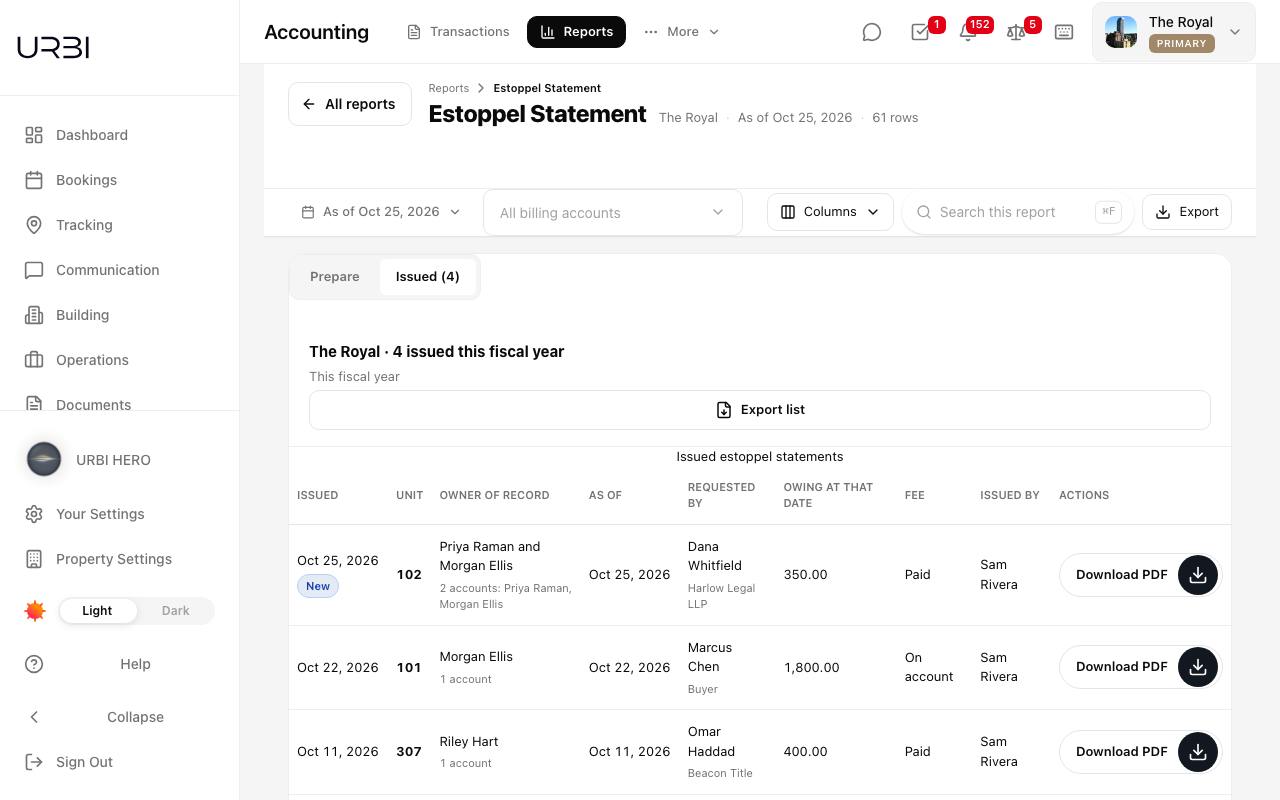
- Open the Issued tab. It lists the statements issued this fiscal year. A statement issued today carries a New tag.
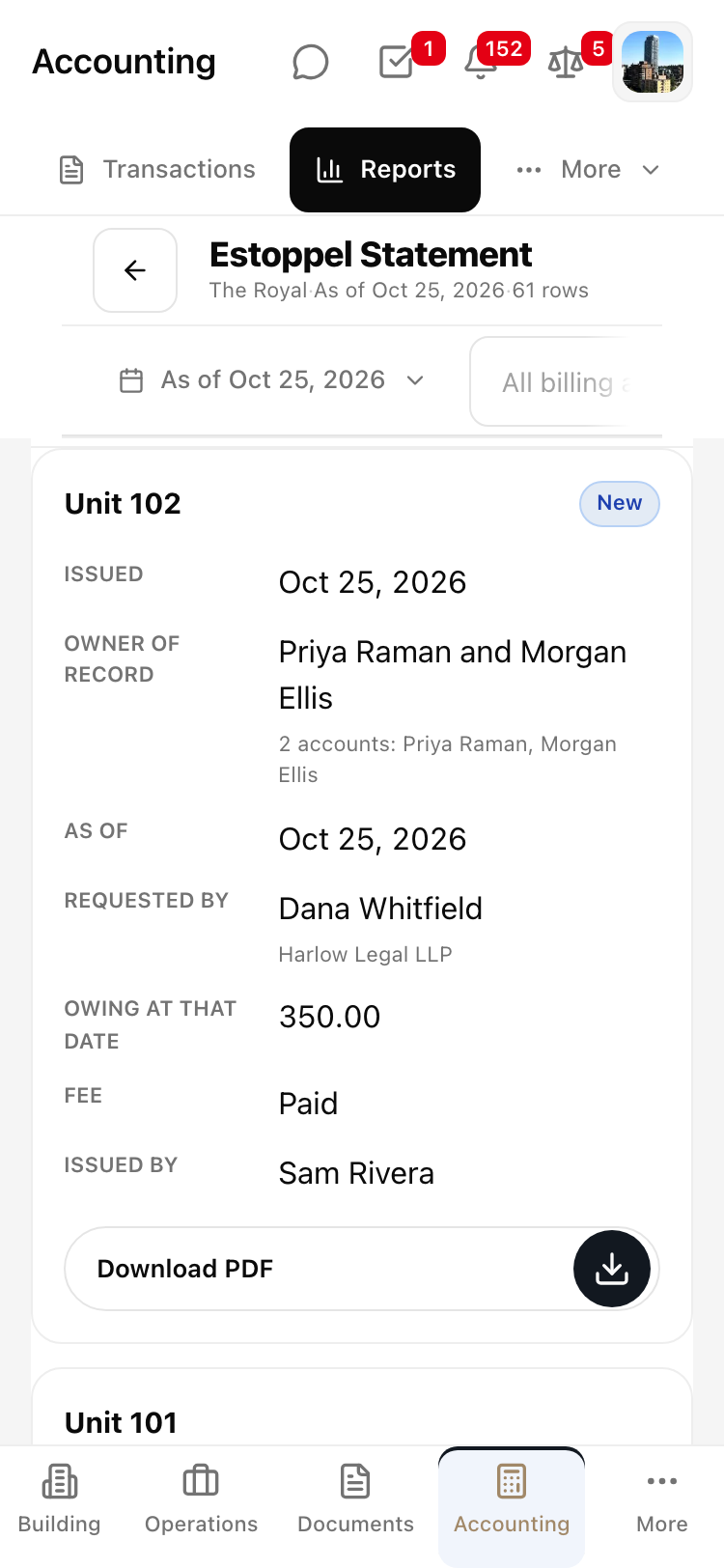
- Each row shows the date, the unit, the owner of record as you worded it (with the accounts it covered, for example "2 accounts: Priya Raman, Morgan Ellis"), the as-of date, who requested it, the amount owing at that date, the fee status, and who issued it.
- Select Download PDF on a row to get the signed statement. Export list downloads the whole list.
On a phone
On a narrow screen the same steps apply. The account blocks stack one under another, each charge appears as its own card, the issue card sits below the statement, and the Issued list shows one card per statement with a Download PDF button.
Exporting
Export at the top of the report is available once a unit is selected. The export carries each account, its subtotal, the combined amount owed and the owner wording you chose.