


How to filter bank lines on Bank reconciliation
The Bank reconciliation page uses the same filter bar as the other accounting screens. Here it narrows the Bank lines list, and its Property filter picks the property you are reconciling. Who can use...
Last updated
The Bank reconciliation page uses the same filter bar as the other accounting screens. Here it narrows the Bank lines list, and its Property filter picks the property you are reconciling.
Who can use it: Staff, property managers and board members with accounting access. Matching and reconciling need GL Edit access.
Where to find it: Go to Accounting > General Ledger, select Reconciliation, and open the Bank lines tab.
Choose the property
- Click into the bar, click Filter, and pick Property. Bank reconciliation takes one property at a time, because each bank account, statement and period belongs to a single property.
- If you arrive with All properties and you can see only one, that property opens for you. If you can see several, the page asks you to Choose a property and lists them. Pick one in the bar.
- Choosing a property here does not change the property in your page header.
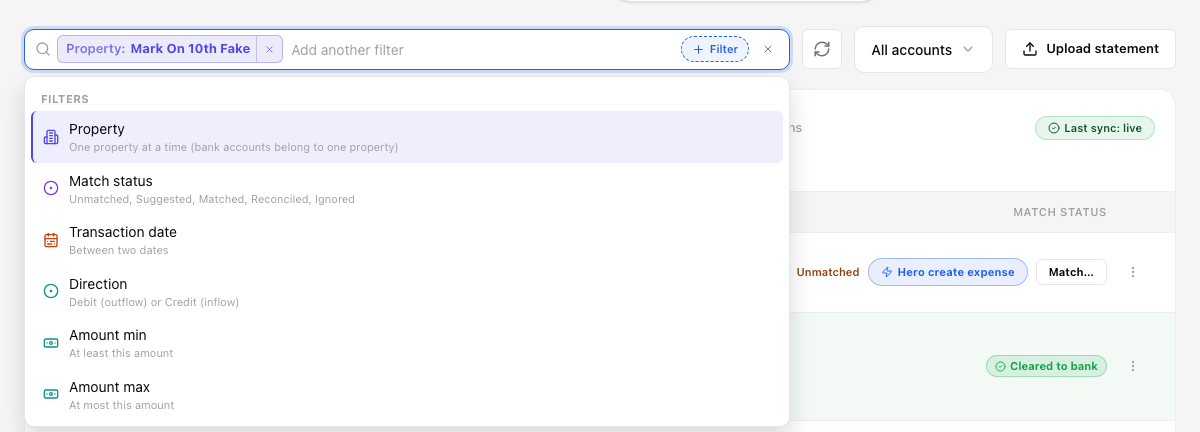
The Bank lines filter list. Property is first.
Narrow the lines
- Add any of these, and they all work together:
- Match status: Unmatched, Suggested, Matched, Reconciled or Ignored. You can choose more than one.
- Transaction date: between two dates.
- Direction: Debit (outflow) or Credit (inflow).
- Amount min and Amount max.
- Plain text searches the line descriptions.
- The All accounts picker beside the bar still chooses a single bank account.
- If your filters match nothing, the list says no bank lines match your filters. It no longer says "All matched", which now means every line in view really is matched.
The Rules tab
- On the Rules tab the same bar offers Property and a Search that filters the rules list. Clearing the search clears the text in the bar and in the page link.
Share the view
- Copy the page link. It carries the property and your filters. See Choosing properties and reading totals.