


Choosing properties and reading totals on accounting screens
Five accounting screens now share one filter bar with a Property filter: Transactions , Expenses (Bills, Reimbursements and Cheques), General Ledger , Bank reconciliation and Collections . The old...
Last updated
Five accounting screens now share one filter bar with a Property filter: Transactions, Expenses (Bills, Reimbursements and Cheques), General Ledger, Bank reconciliation and Collections. The old filter sidebars are gone. This article explains the parts every screen has in common: choosing properties, sharing a filtered view, how totals handle currencies, and how exports behave.
Who can use it: Staff, property managers and board members with accounting access. You only ever see the properties and amounts your own permissions allow.
Choose which properties you see
- Open any of the screens above and click into the bar. Click Filter, then Property.
The Property filter offers All properties, or any single property you can see.
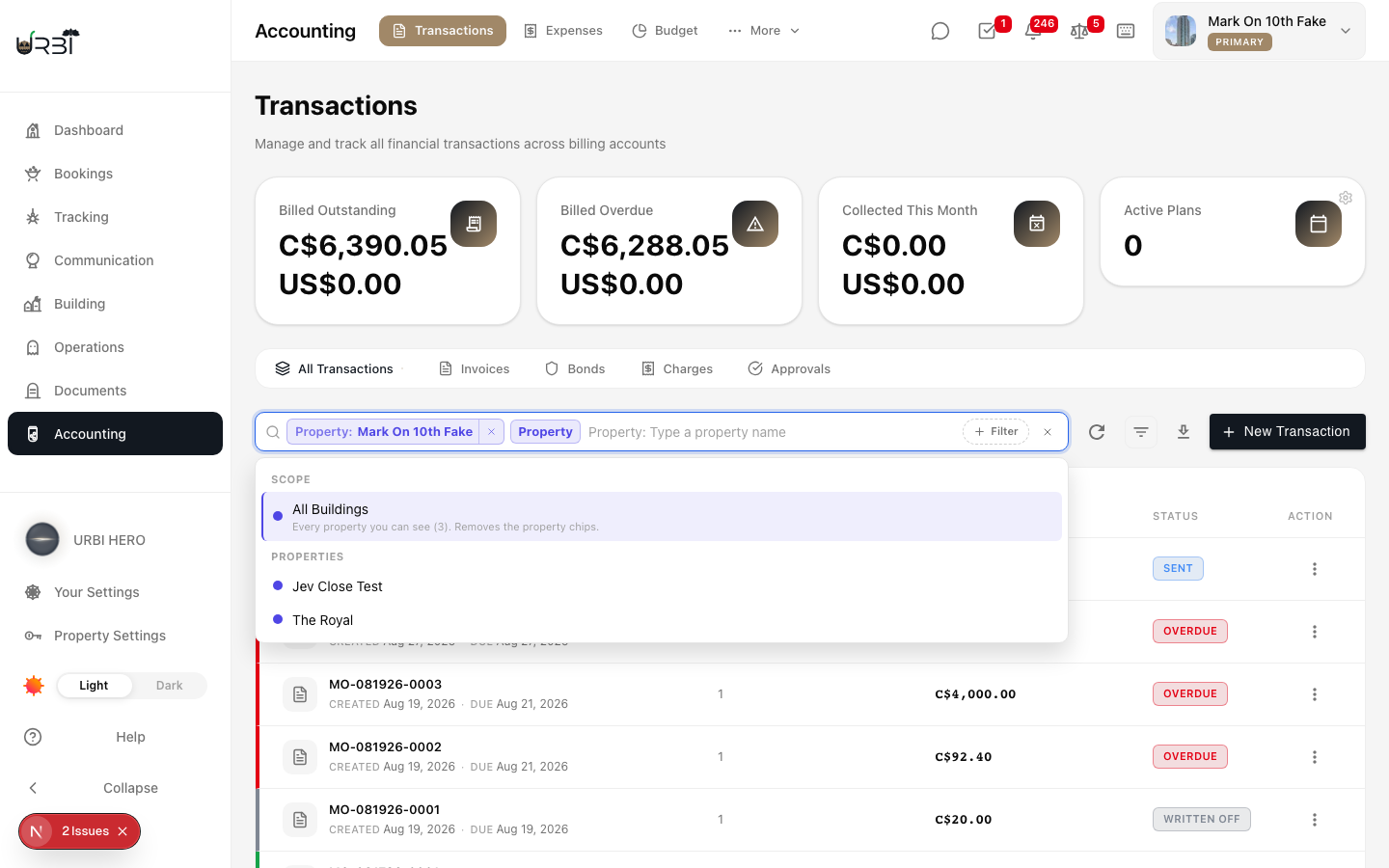
- Choose one property, several, or All. Each choice is a chip in the bar. The bar starts on your current header property, or on All when your header is on All.
- With more than one property in view, rows name their property: a small tag on Transactions, Bills and Reimbursements, a Property column on Cheques, General Ledger and Collections.
- Bank reconciliation works on one property at a time, because each bank account belongs to one property. See How to filter bank lines.
- Changing the property on a page does not change the property in your page header, except on screens that already followed the header.
When you change the properties, any filter that depends on them (a unit, a billing account, a vendor, a bank account, a GL account) and no longer belongs to the new set is removed with its chip, and a notice names what was removed.
Share a filtered view
- Copy the page link from your browser. It carries the properties and every filter. Anyone who opens it, and who has access to those properties, sees the same chips and rows. Reloading the page, and the Back and Forward buttons, keep your filters too.
- If the link names a property you cannot see, that property is left out and the page says "Some properties in this link are not available to you, so they were left out."
- If none of the properties in the link are available to you, the list is empty and offers Show all my properties. It never swaps in properties you did not choose.
Totals and currencies
- Totals cover every property in view. When the properties use one currency, you see one figure with its currency, for example C$1,099.35.
- When the properties in view use different currencies, each total shows one line per currency, C$ and US$, side by side or stacked. URBI never adds two currencies together, and each row shows its own currency.
- This month figures, such as Collected This Month and Total This Month, follow each property's own local month. A property in a later time zone rolls into the new month on its own midnight, not on a shared clock.
- Overdue is judged by each property's own local date, in the same way.
Exports
- Where a screen has an export, the file follows the properties and filters you see on screen. The export dialog lists the filters the file will use and says in one line if the file will differ from the screen, for example if some filters do not apply to that list.
The export dialog names the filters the file follows.
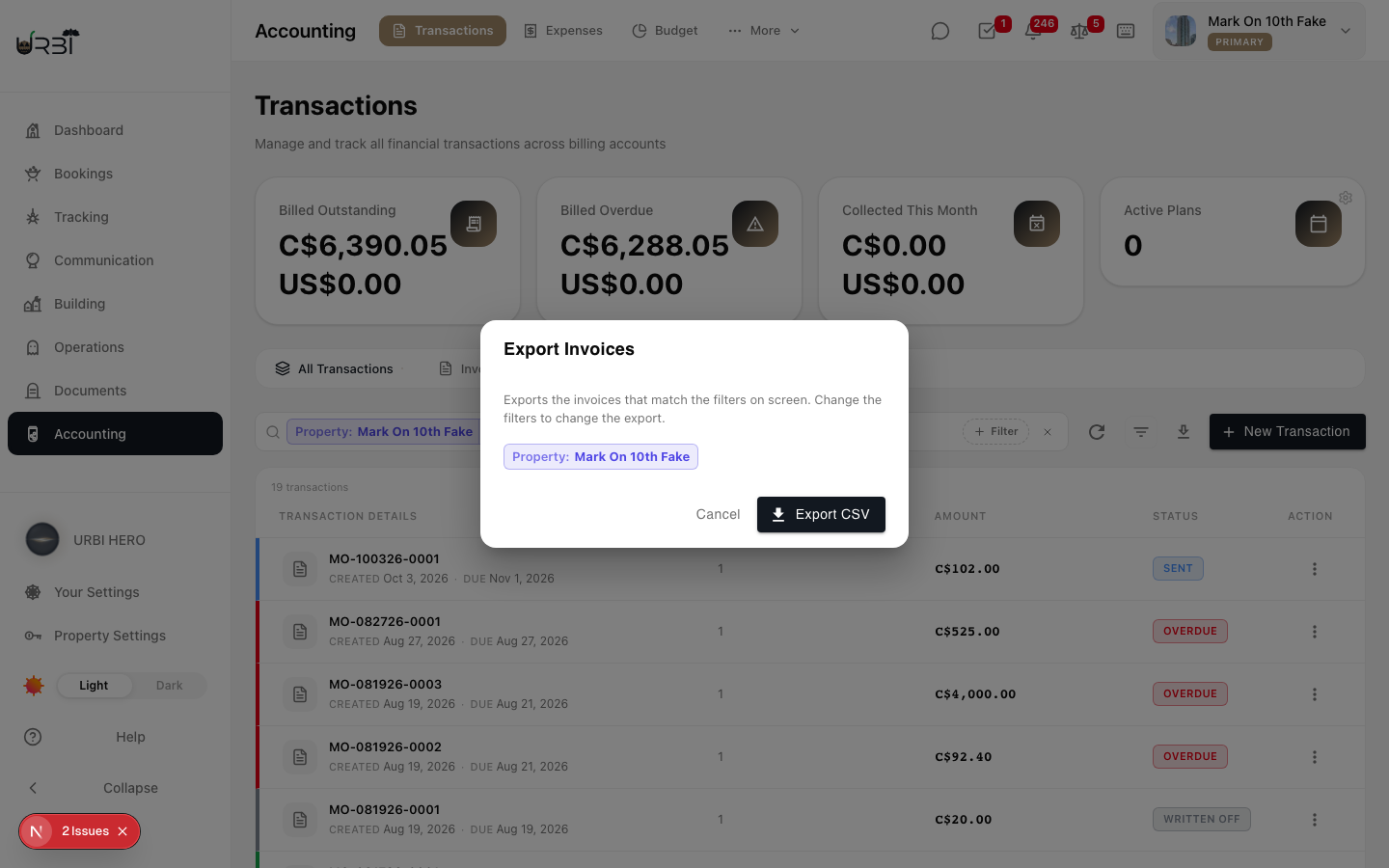
- CSV files include a currency column, and the invoice file includes a Written Off column. Dates in the file use each property's own local day.